[enrolltounlock]Illustrator,HyekyungShin_일러스트레이터 신혜경 Details
Class introduction
Class Intro
Illustrator, Hyekyung Shin
"Explore various styles to discover the one that suits you best, as this curriculum is designed to help you naturally develop your graphic sensibility."
Illustrator Hyekyung Shin Will Teach You the ‘Basics’ of Graphic Design!
This class is for both prospective designers who have difficulty creating work using tools and current designers who are concerned about repeating similar illustrations!
Meet Hyekyung Shin, a freelance illustrator who has collaborated with numerous leading companies including Hyundai Card, Naver Labs, Samsung Electronics, and SSG.
Meet Hyekyung Shin, a freelance illustrator who has collaborated with numerous leading companies including Hyundai Card, Naver Labs, Samsung Electronics, and SSG.
This class is for both prospective designers who have difficulty creating work using tools and current designers who are concerned about repeating similar illustrations!
Meet Hyekyung Shin, a freelance illustrator who has collaborated with numerous leading companies including Hyundai Card, Naver Labs, Samsung Electronics, and SSG.
Meet Hyekyung Shin, a freelance illustrator who has collaborated with numerous leading companies including Hyundai Card, Naver Labs, Samsung Electronics, and SSG.
How to use Adobe Illustrator is basic! From icons to emblems, characters, isometrics, infographics, and typography, we will teach you how to create 20 representative illustration graphic styles.
Meet the only illustrator class that will improve your illustration skills and broaden your design spectrum at Coloso now.
Meet the only illustrator class that will improve your illustration skills and broaden your design spectrum at Coloso now.
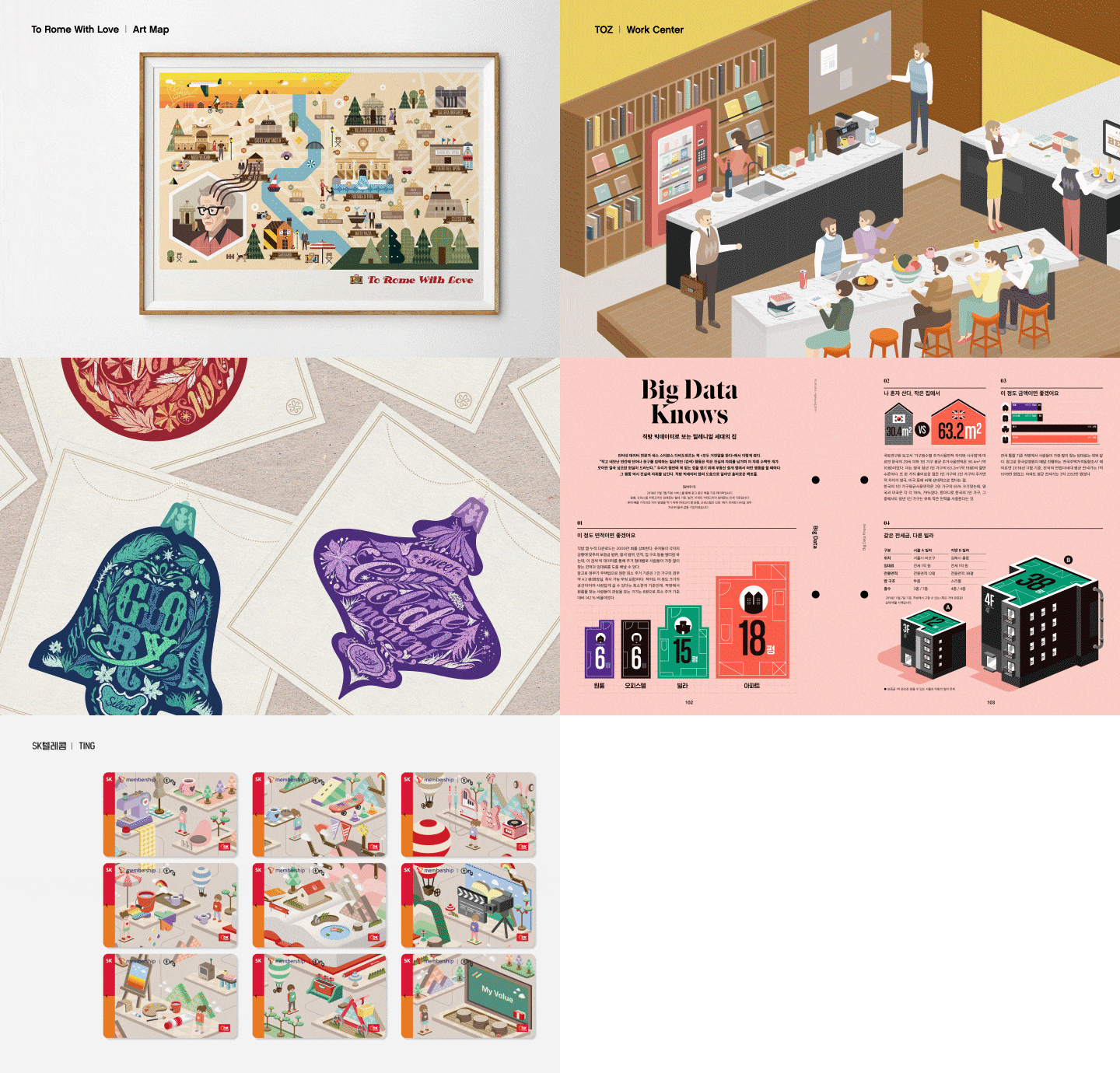
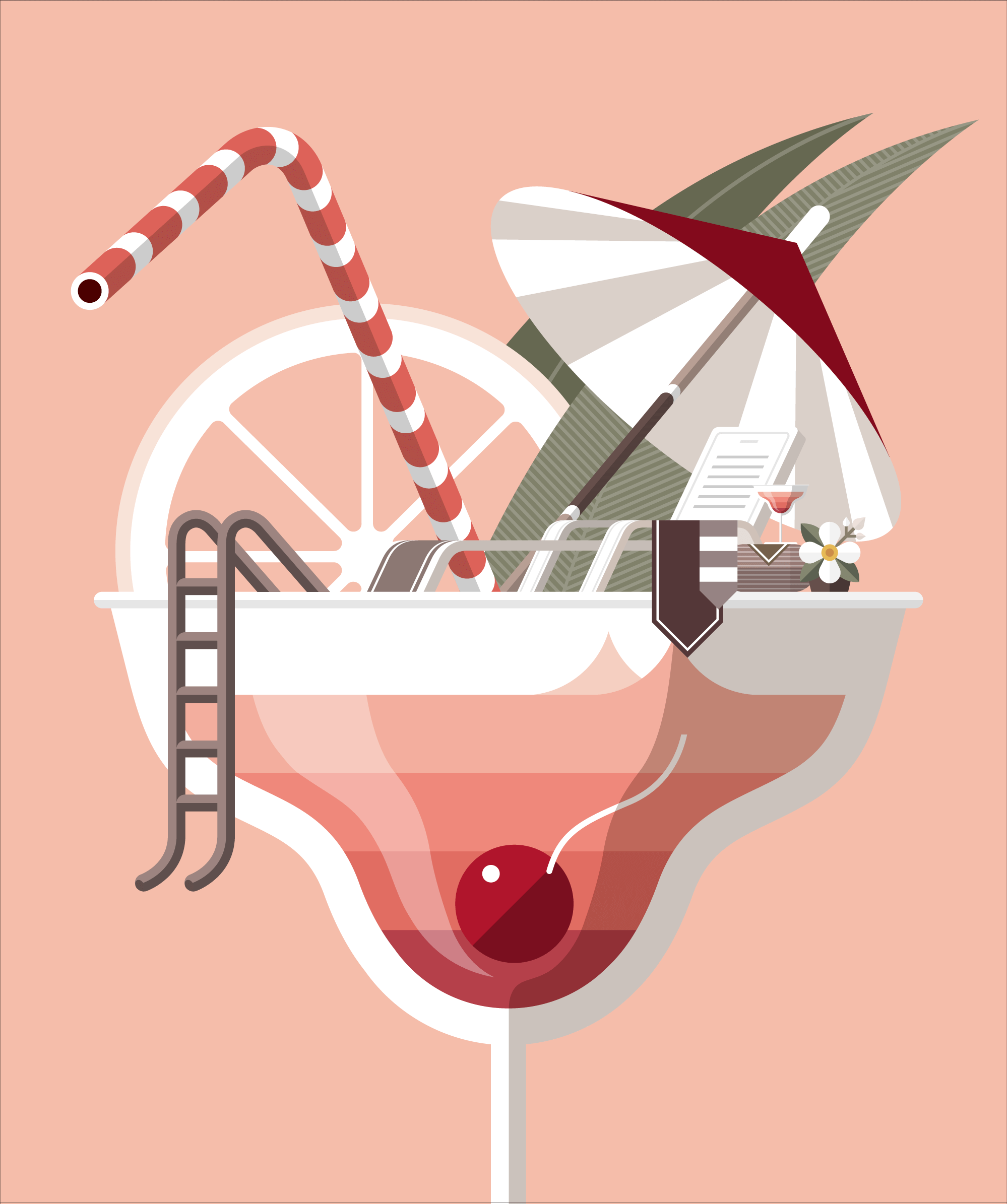
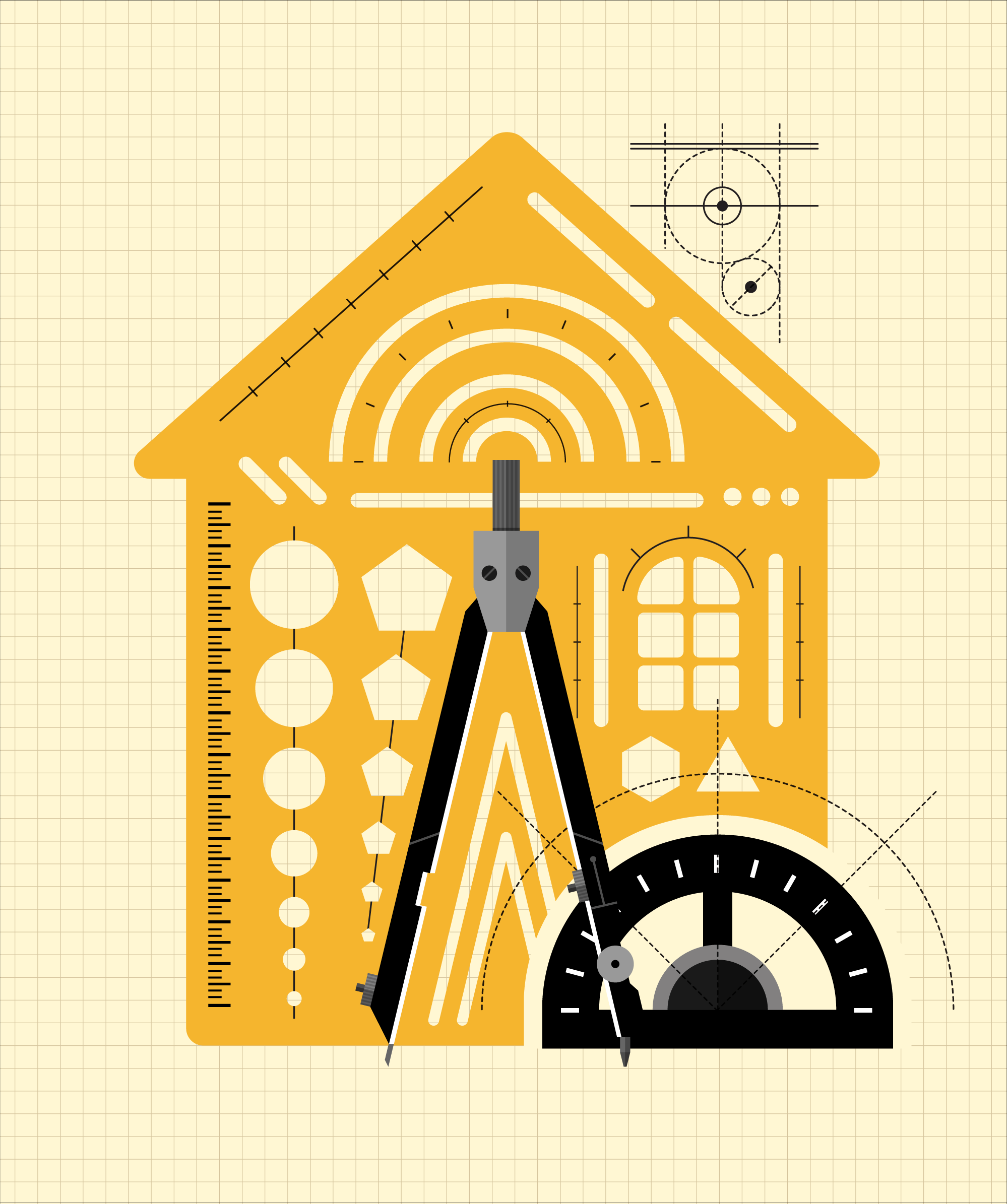
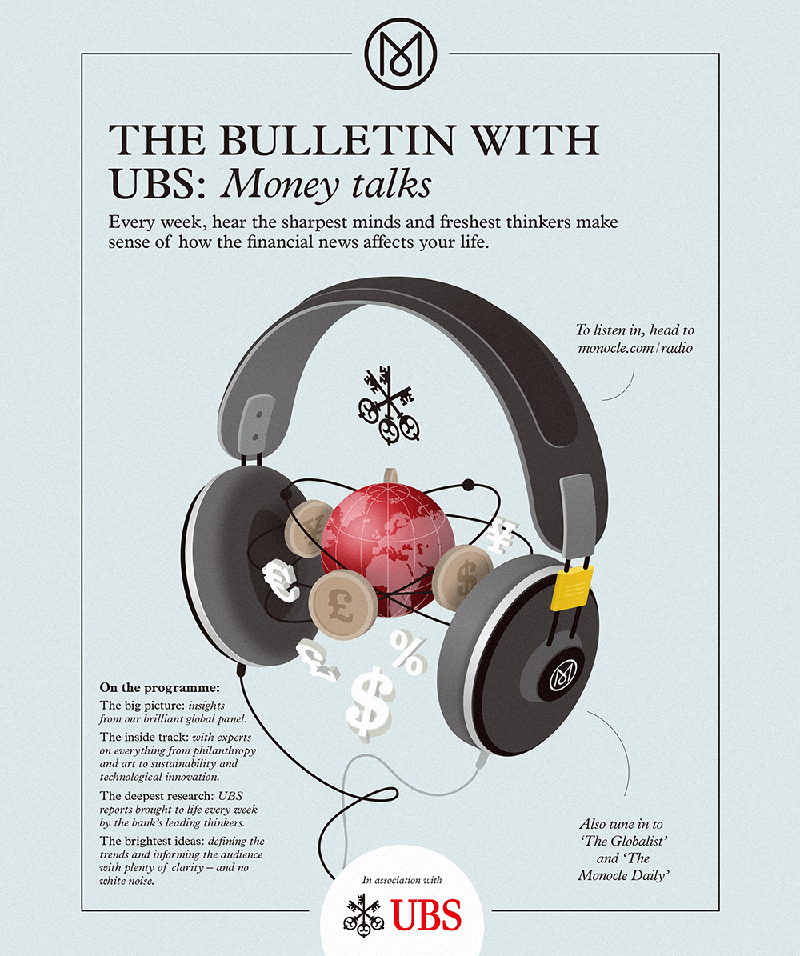
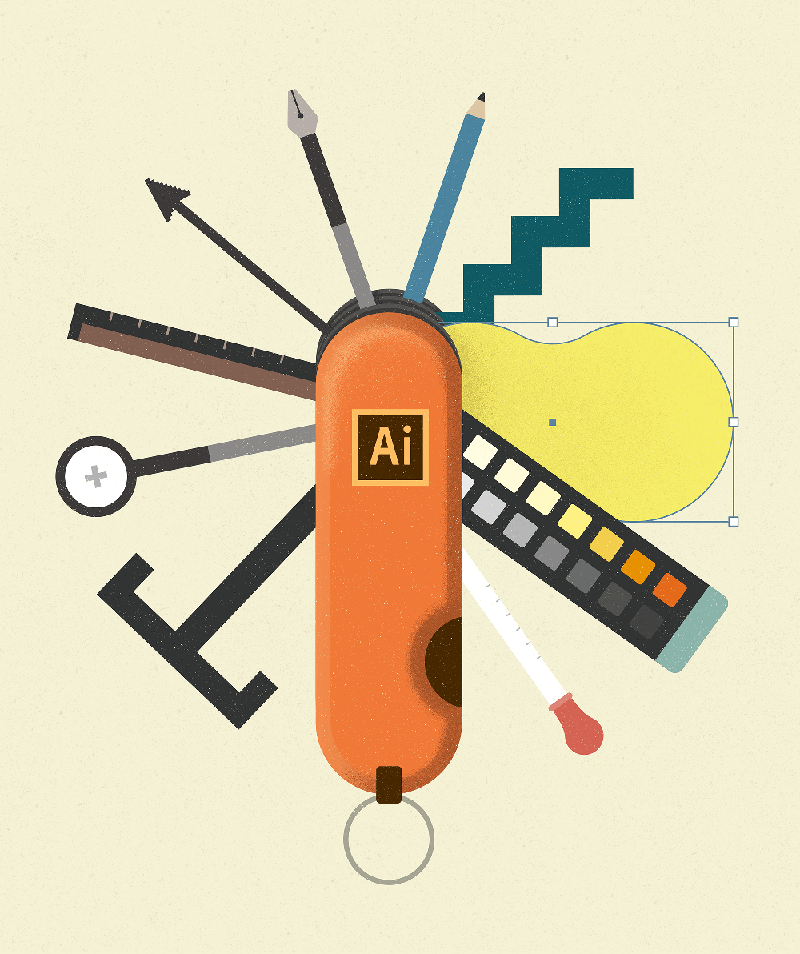
Expert Illustrator Hyekyung Shin's portfolio

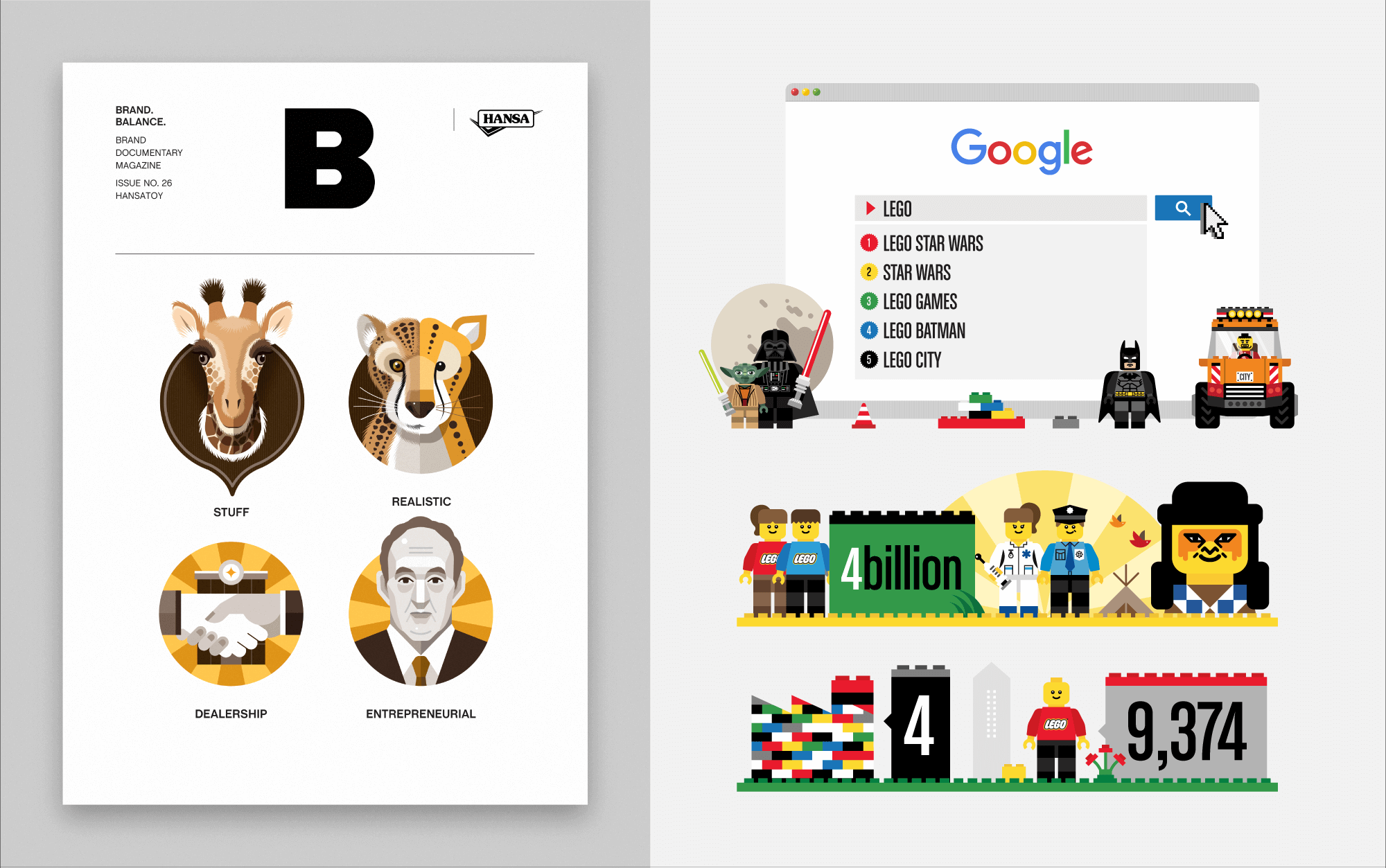
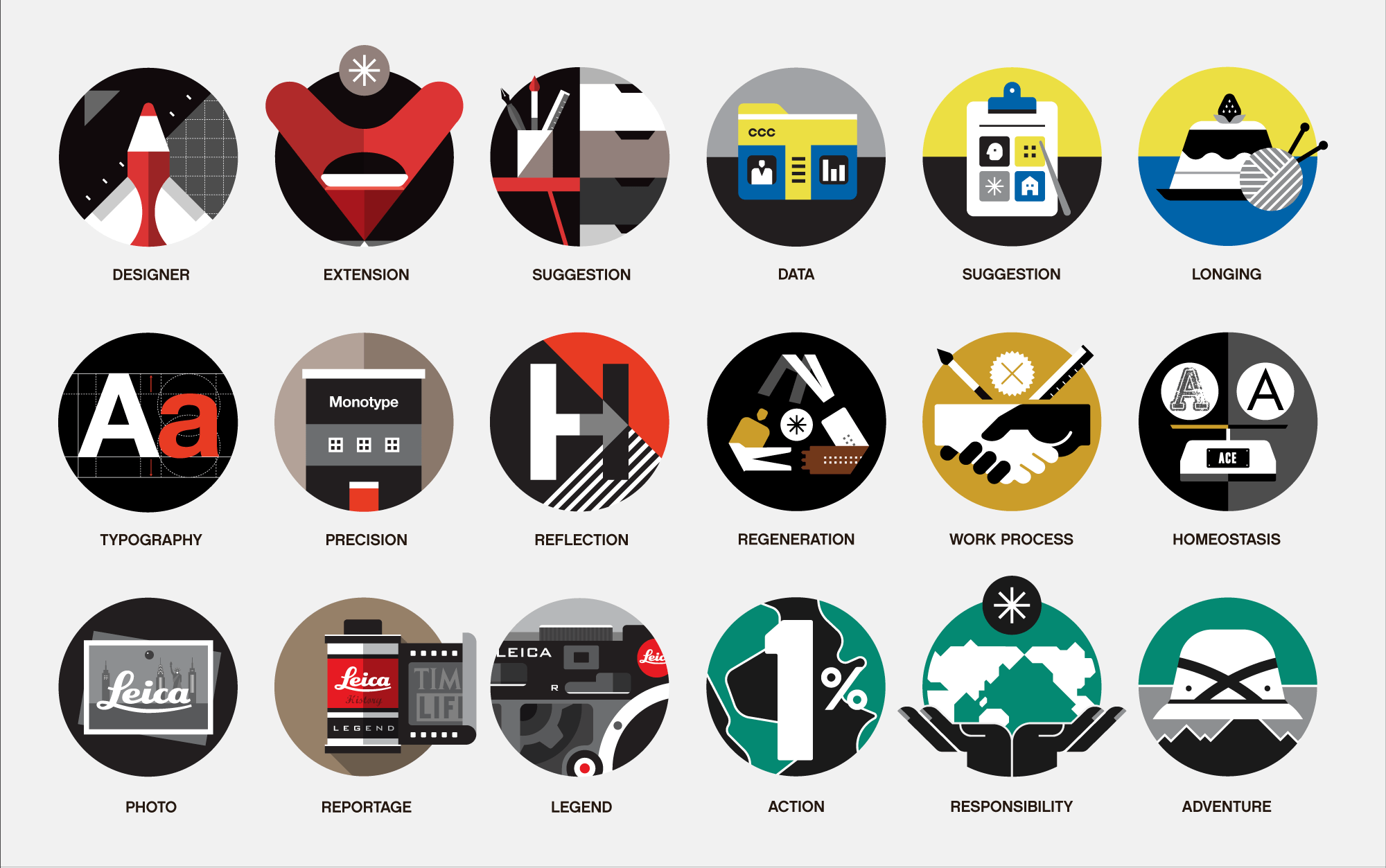
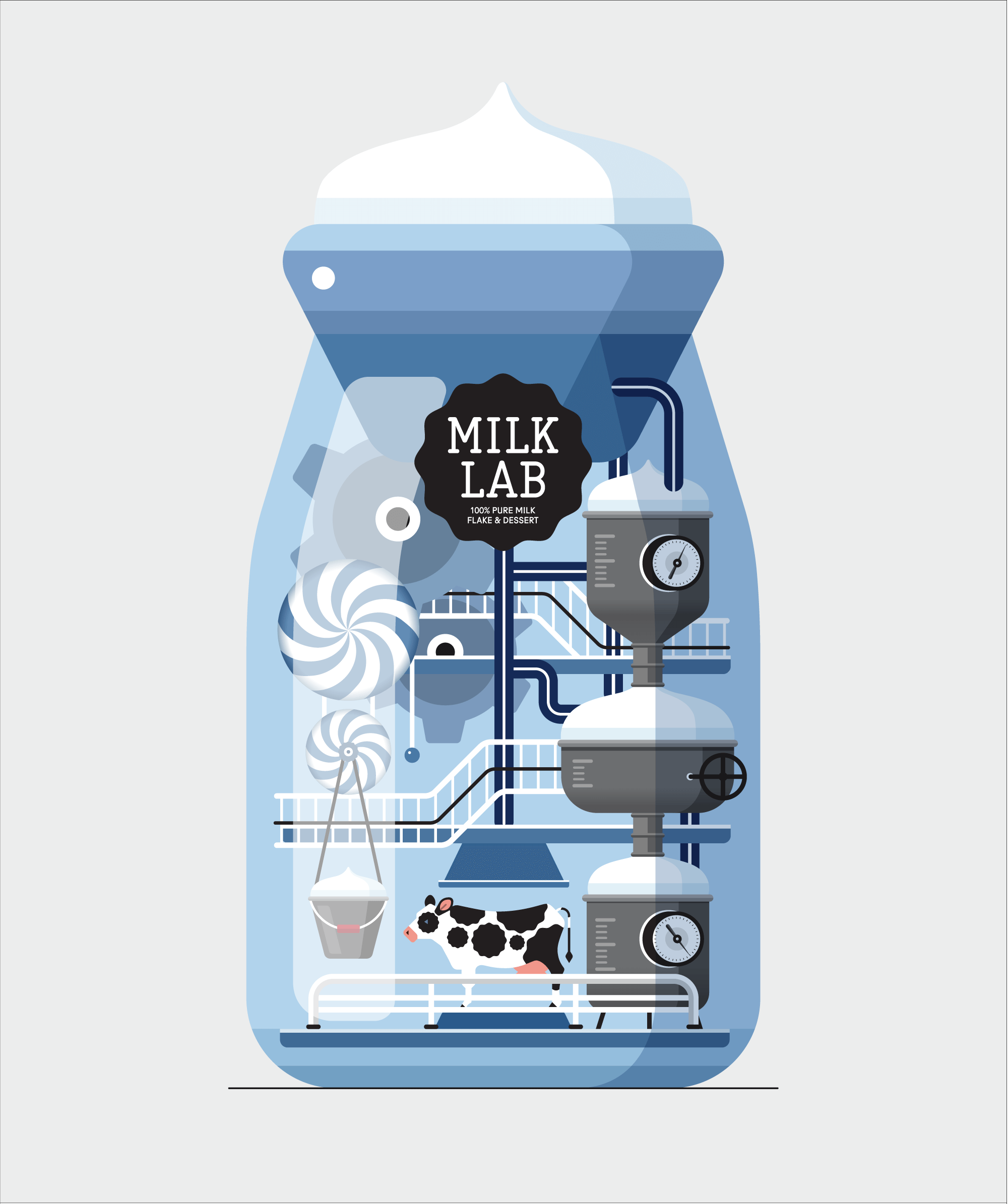
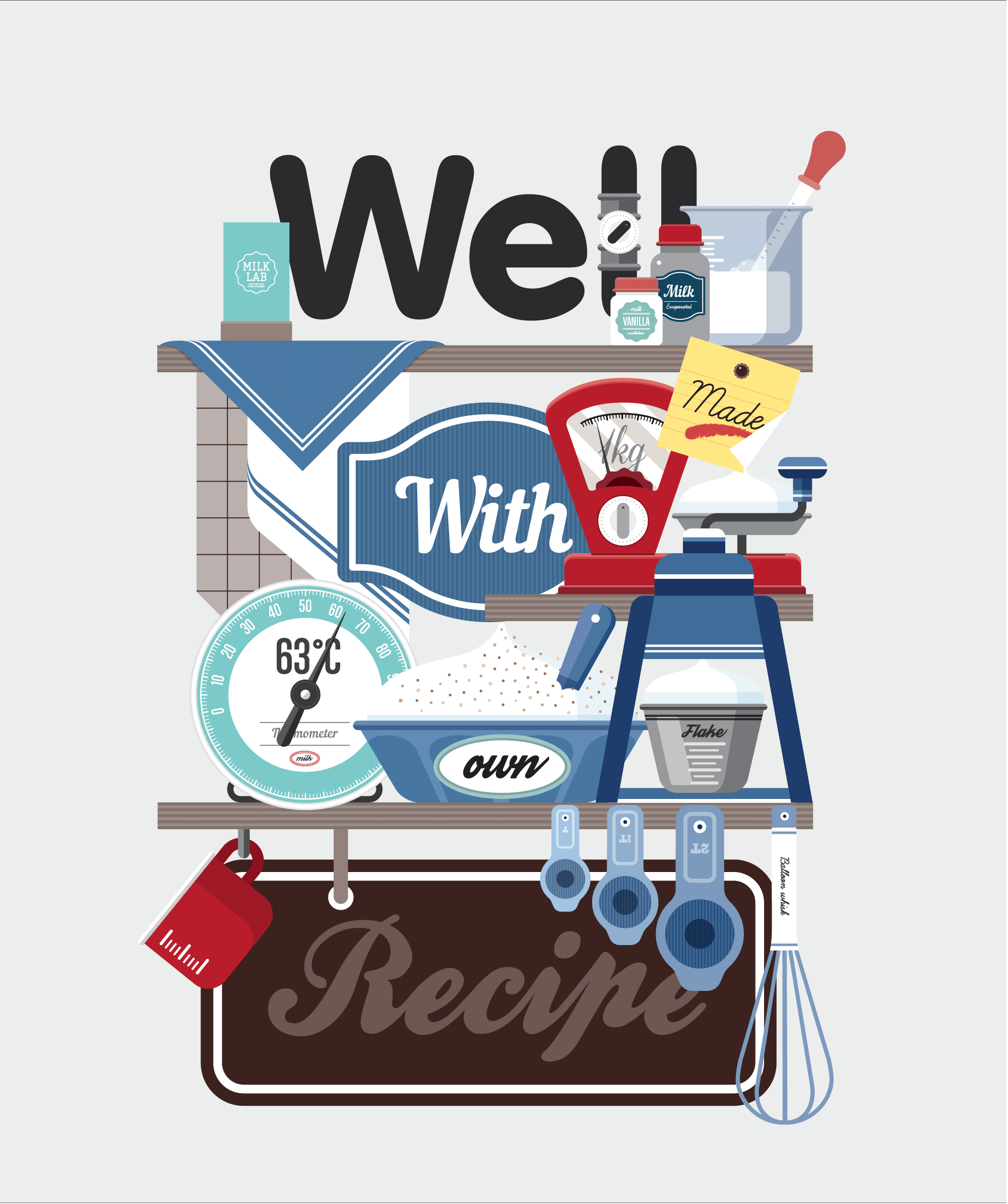
Why Take This Class?
I will teach you 20 examples from the 6 most useful fields in the industry in one class.
Attractive icon and pattern design created using only the basic pen tool and shape tool, isometric design with a trendy design that gives a sense of space and three-dimensionality to 2D,
Typography, which can be expressed infinitely through numerous shapes and patterns!
Coloso is the only illustration class that covers everything from the basics to expanding the design spectrum to strengthen the basics of illustration.

20+ Class Exercises
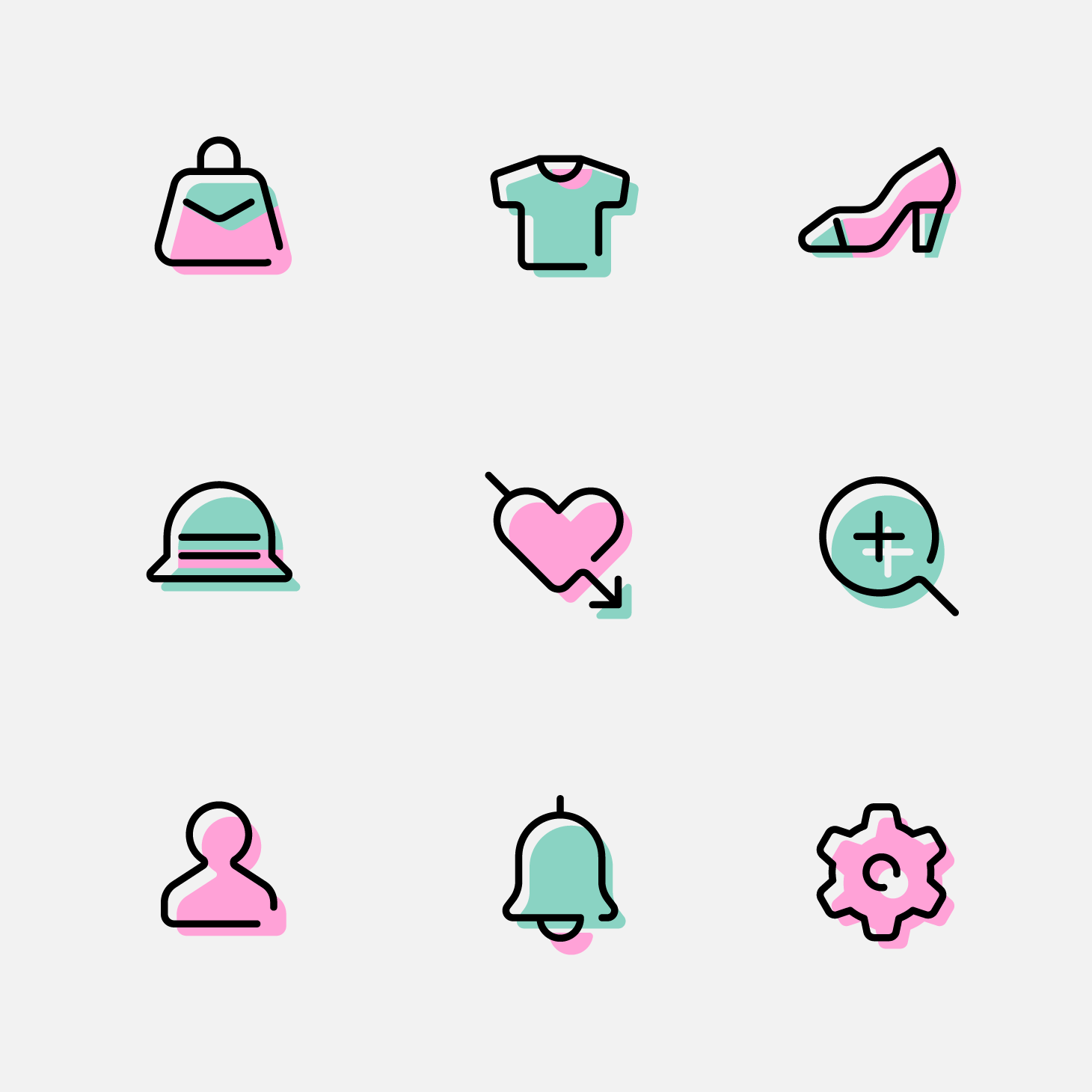
Create an Icon

Create Emblem Stickers
Making Nordic Patterns
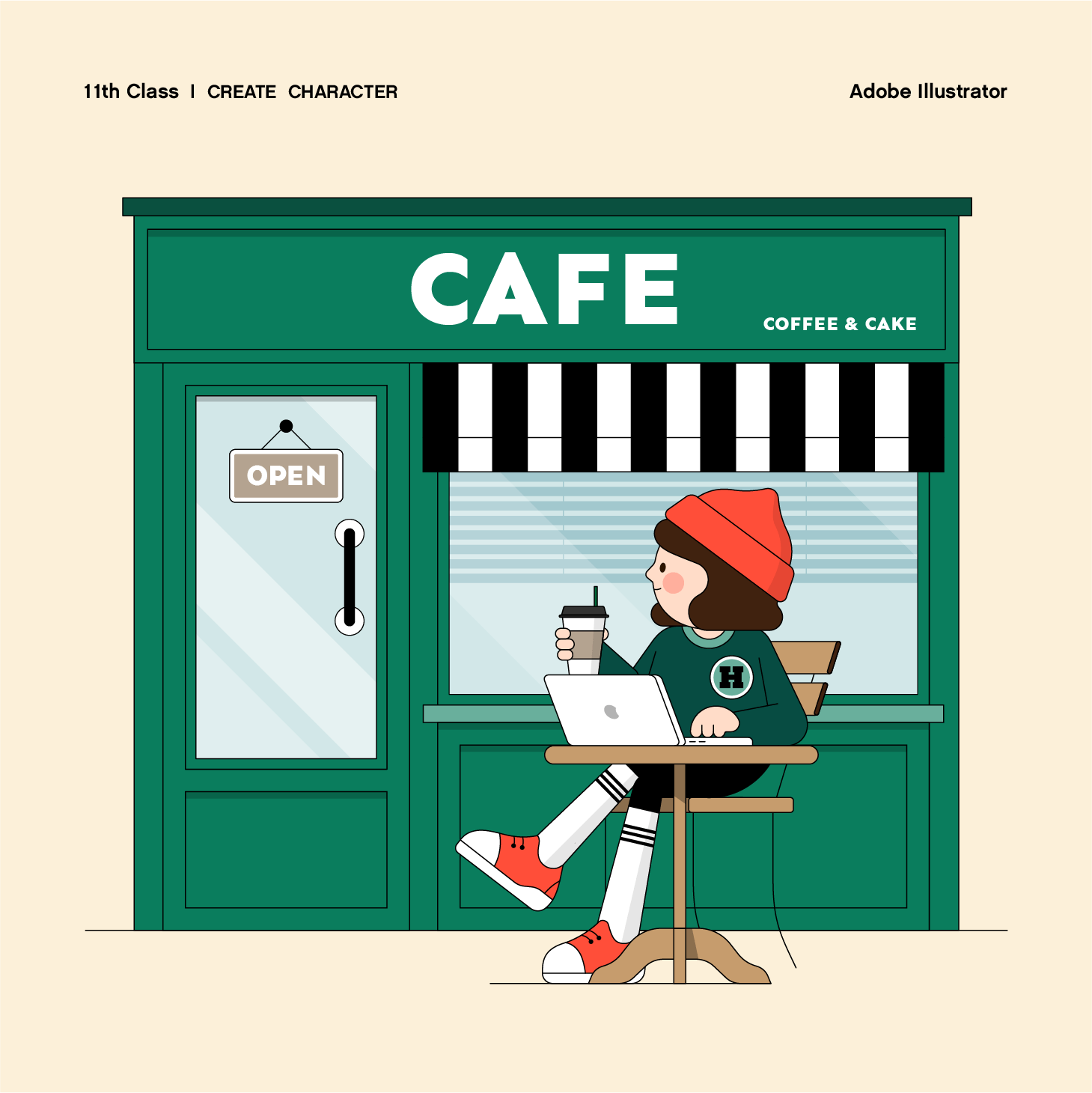
Drawing Characters and Backgrounds
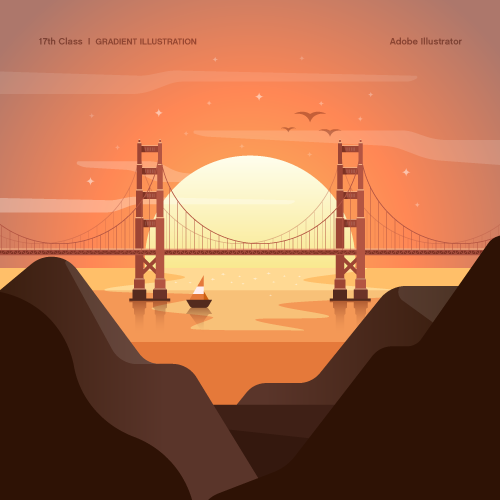
Gradient Illustration
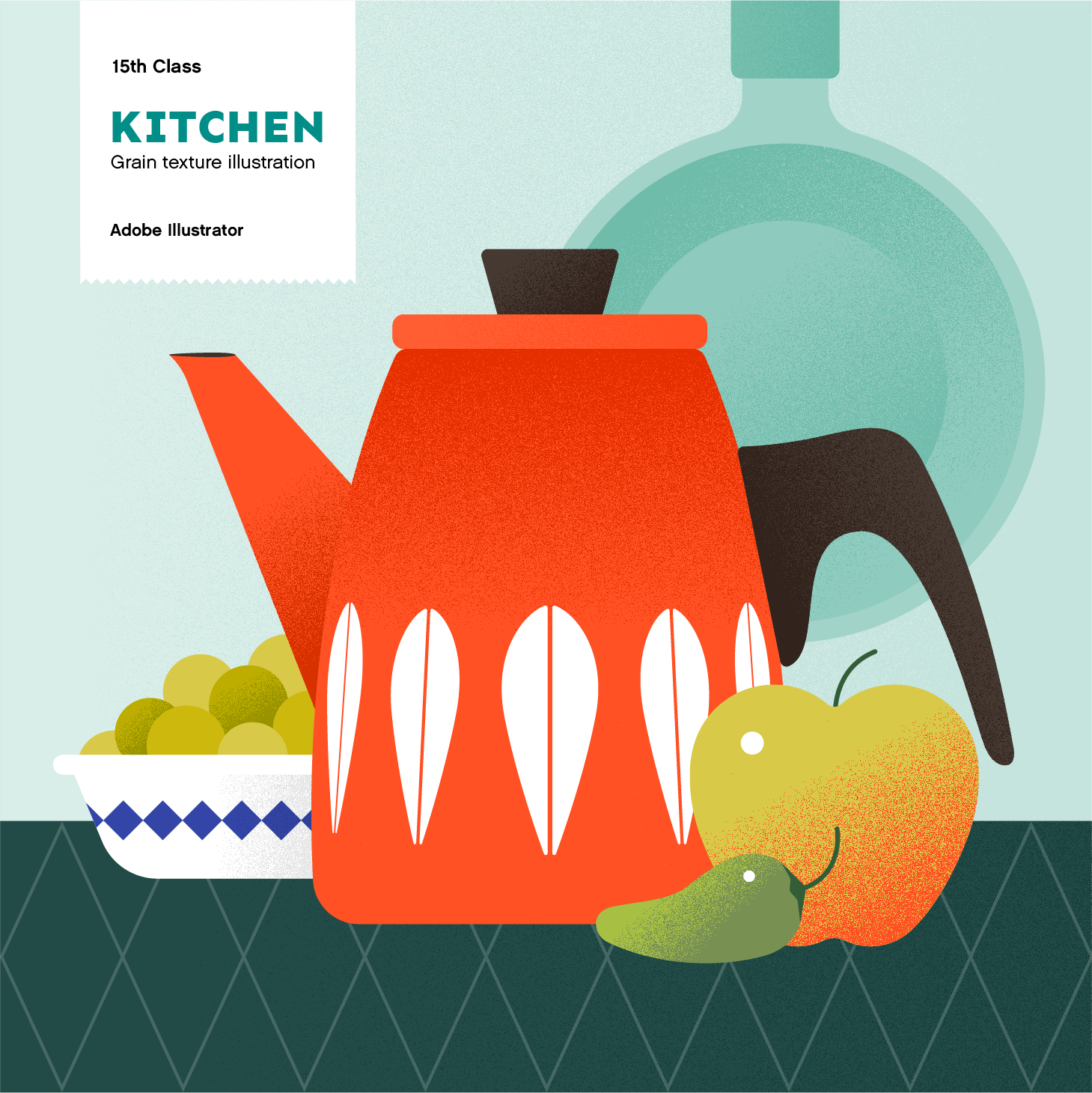
Grain Texture Illustration
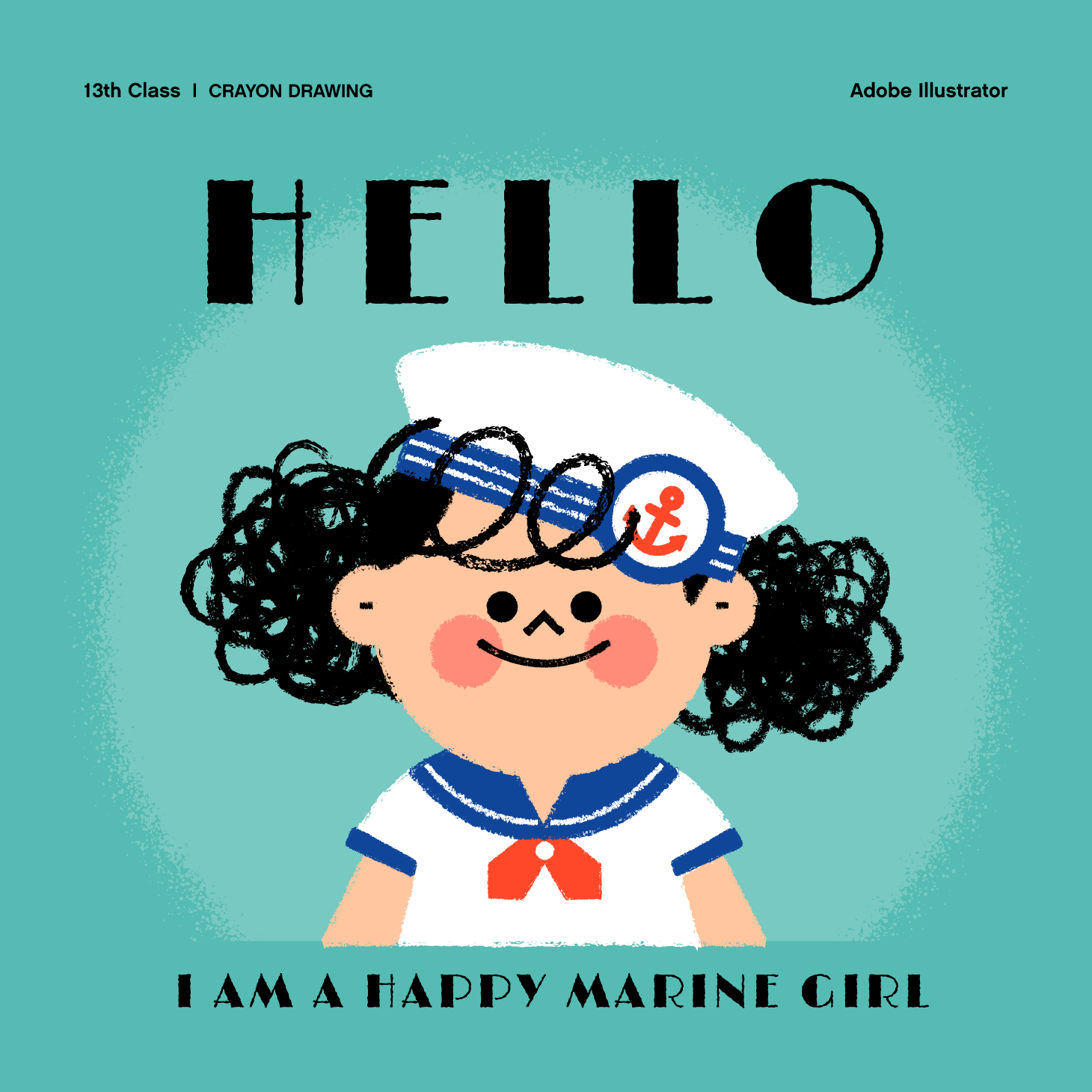
Crayon Brush Illustration
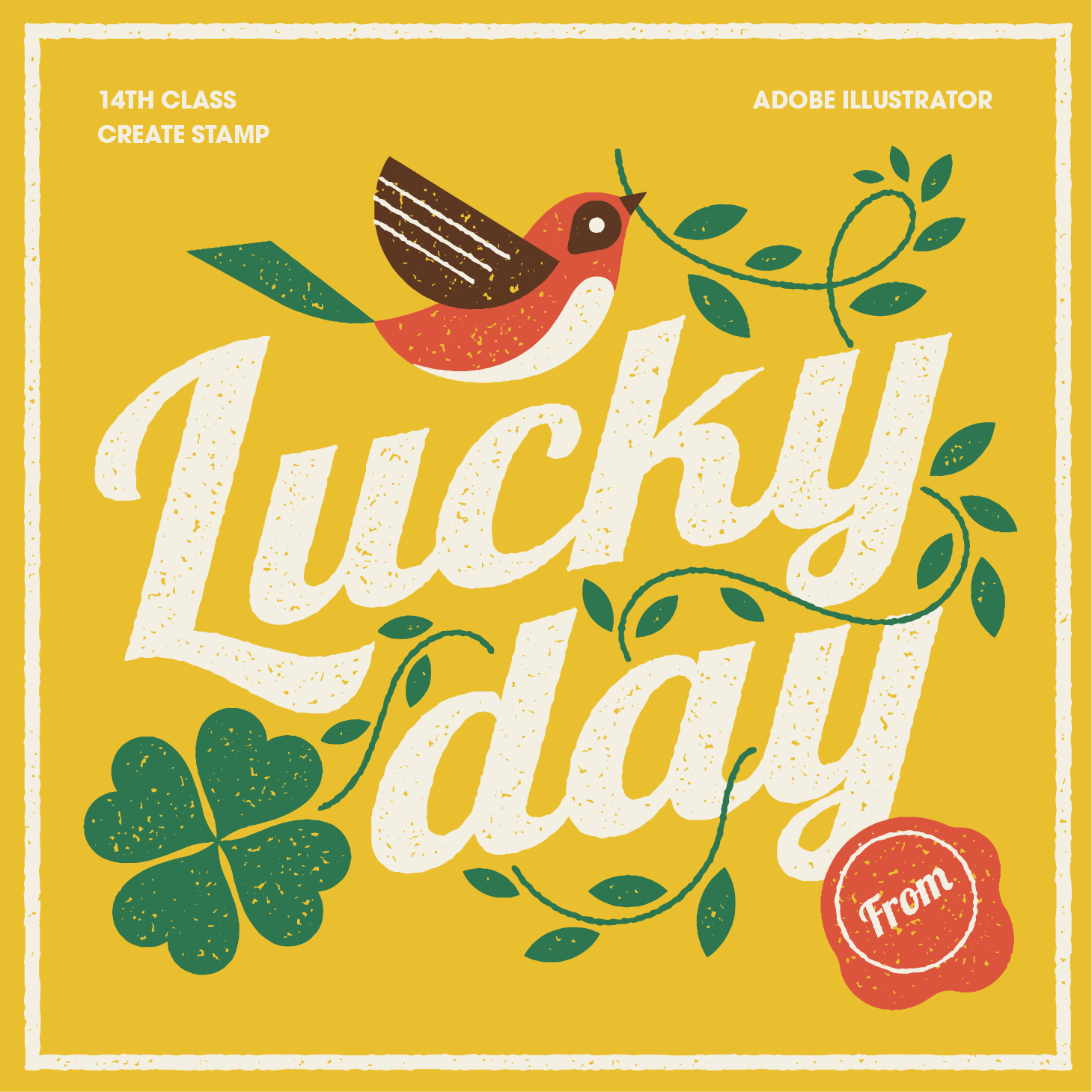
Vintage Stamp Effect
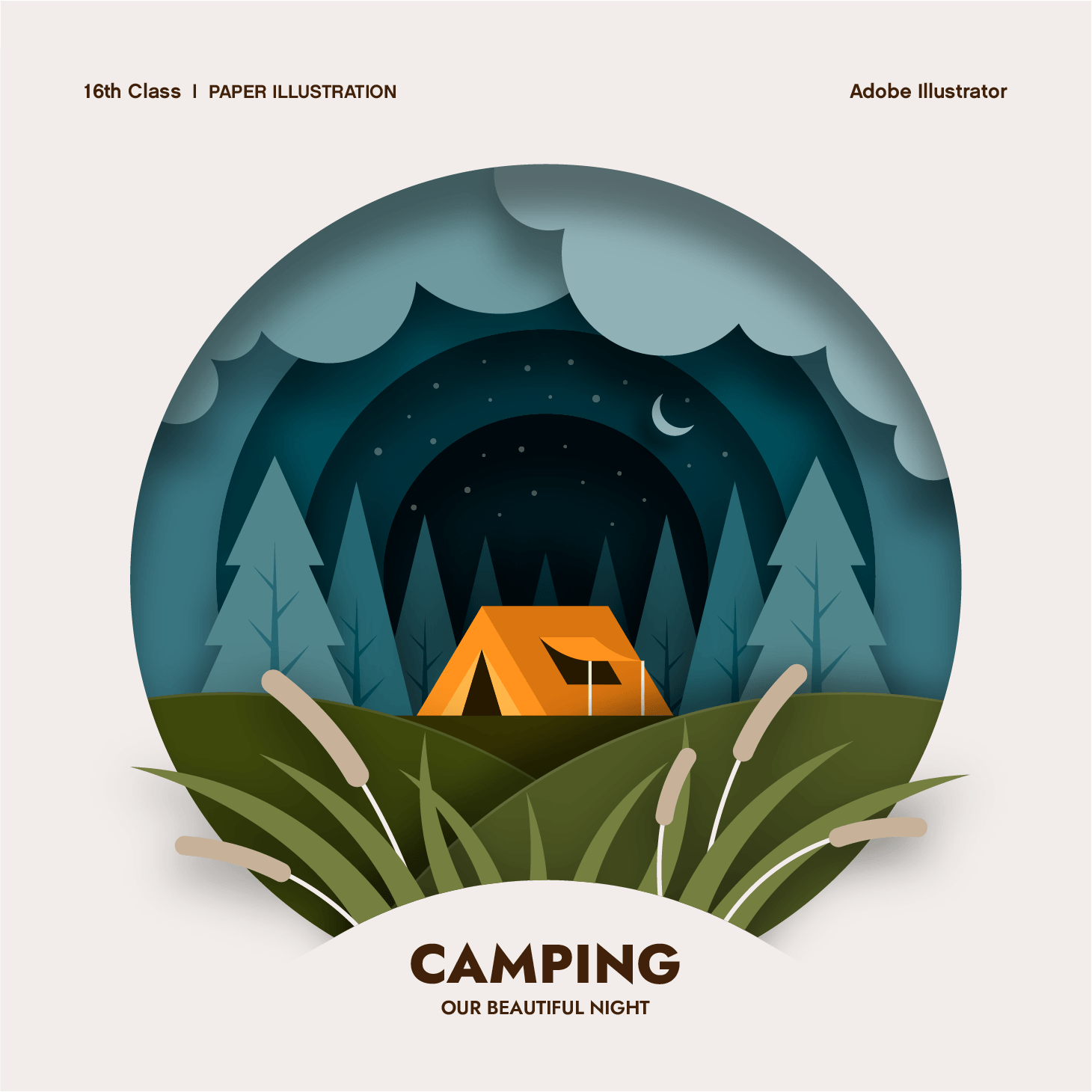
Paper Illustration
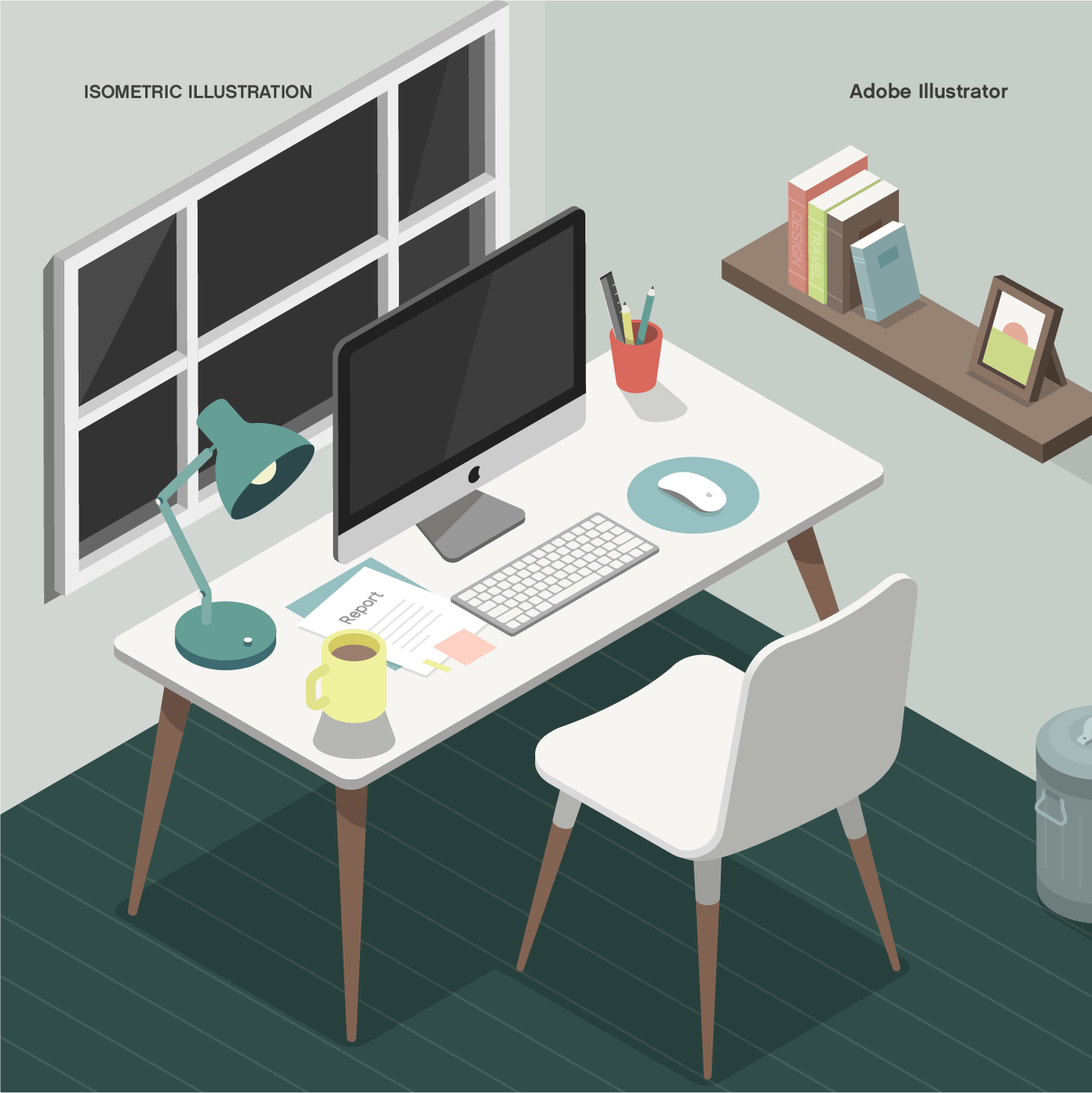
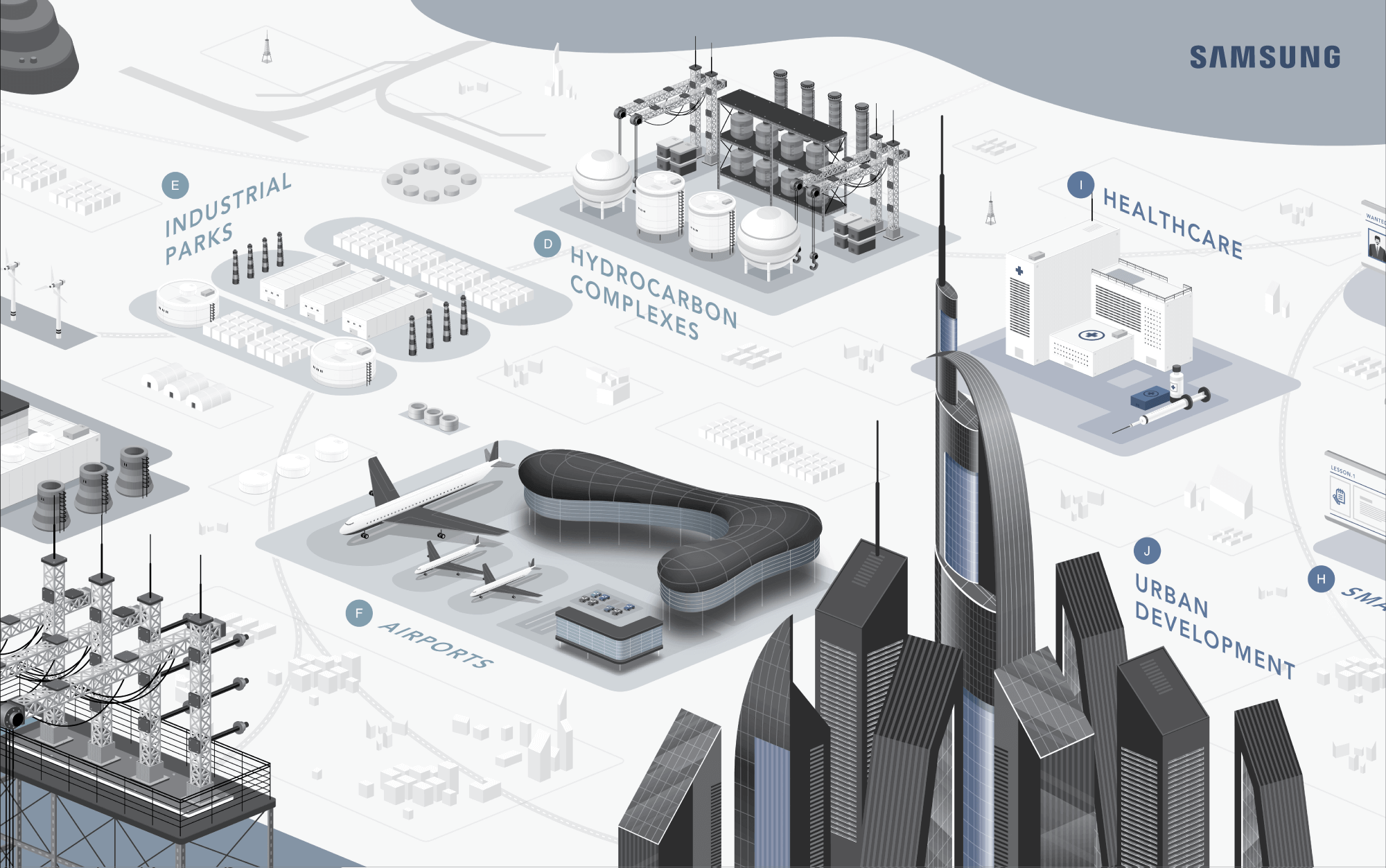
Isometric Illustration
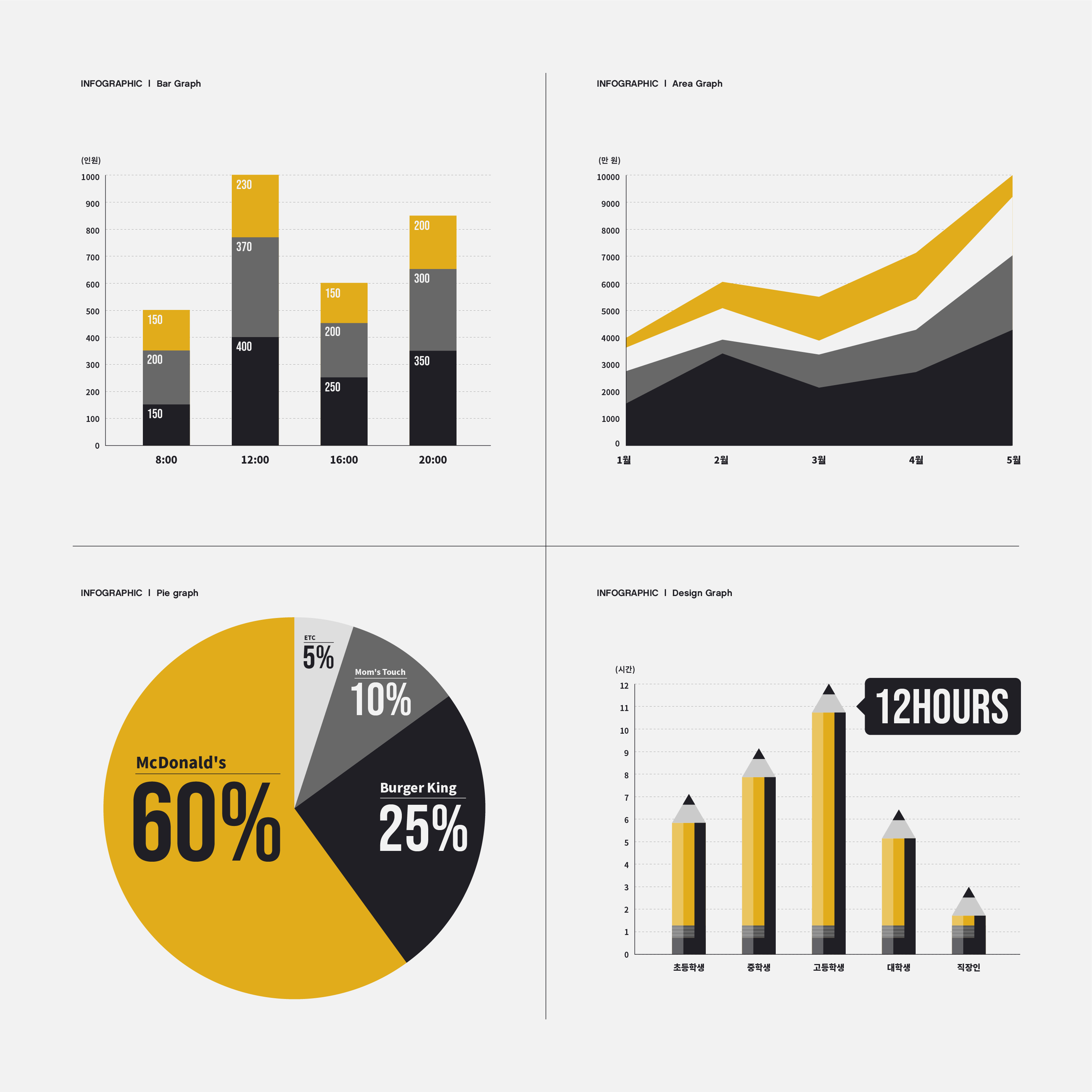
Infographic
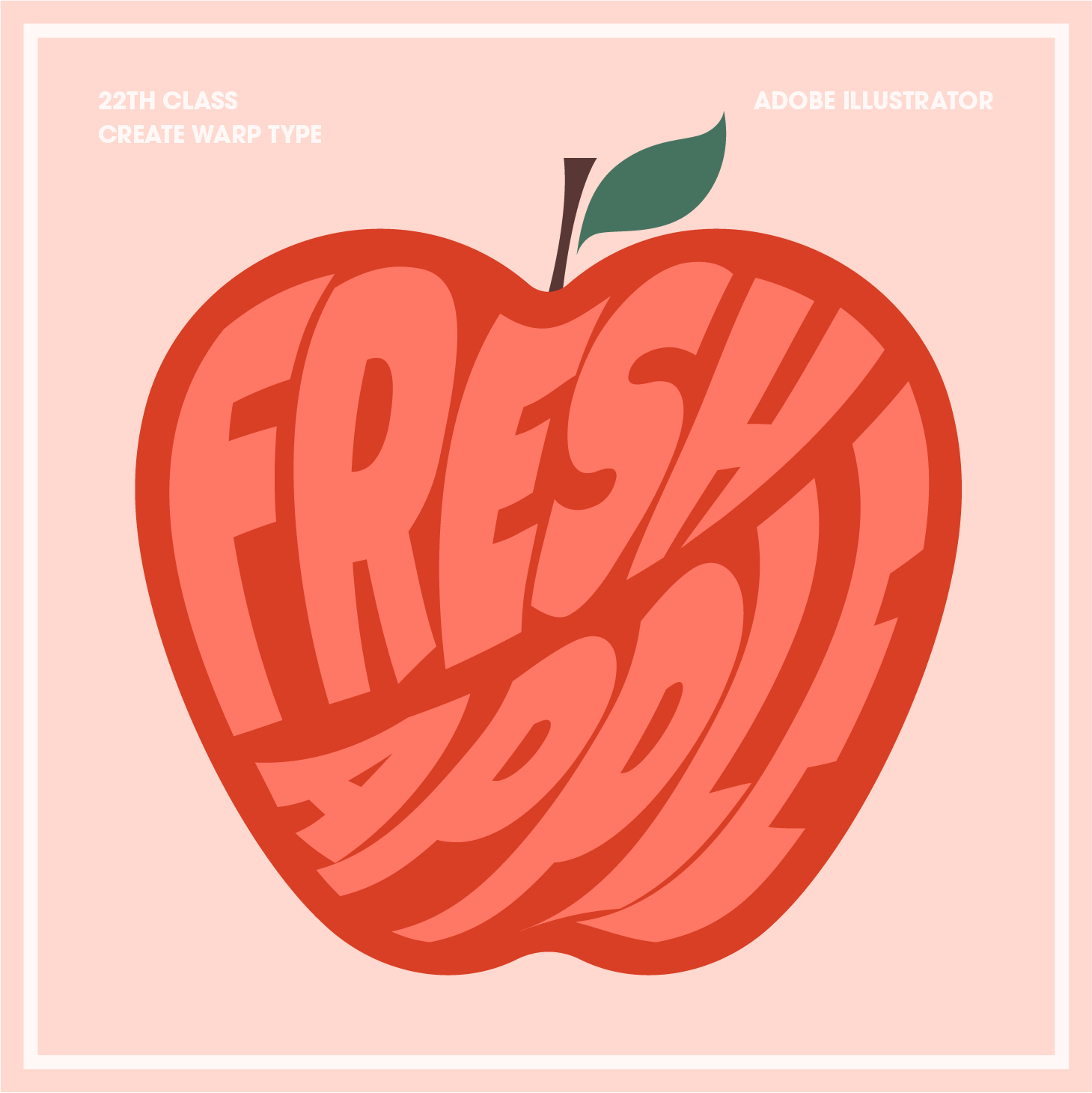
Warp Typography 01
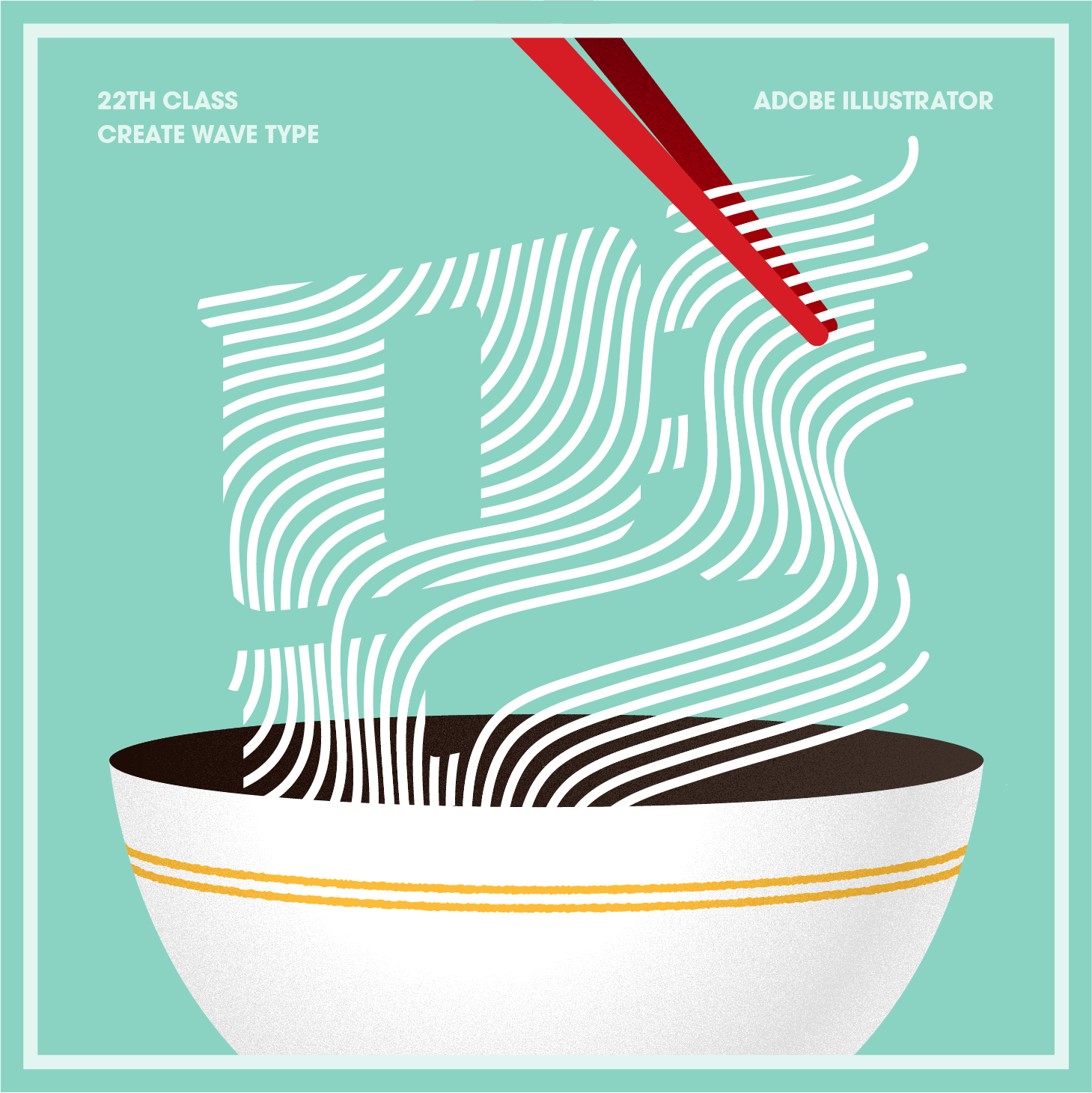
Warp Typography 02
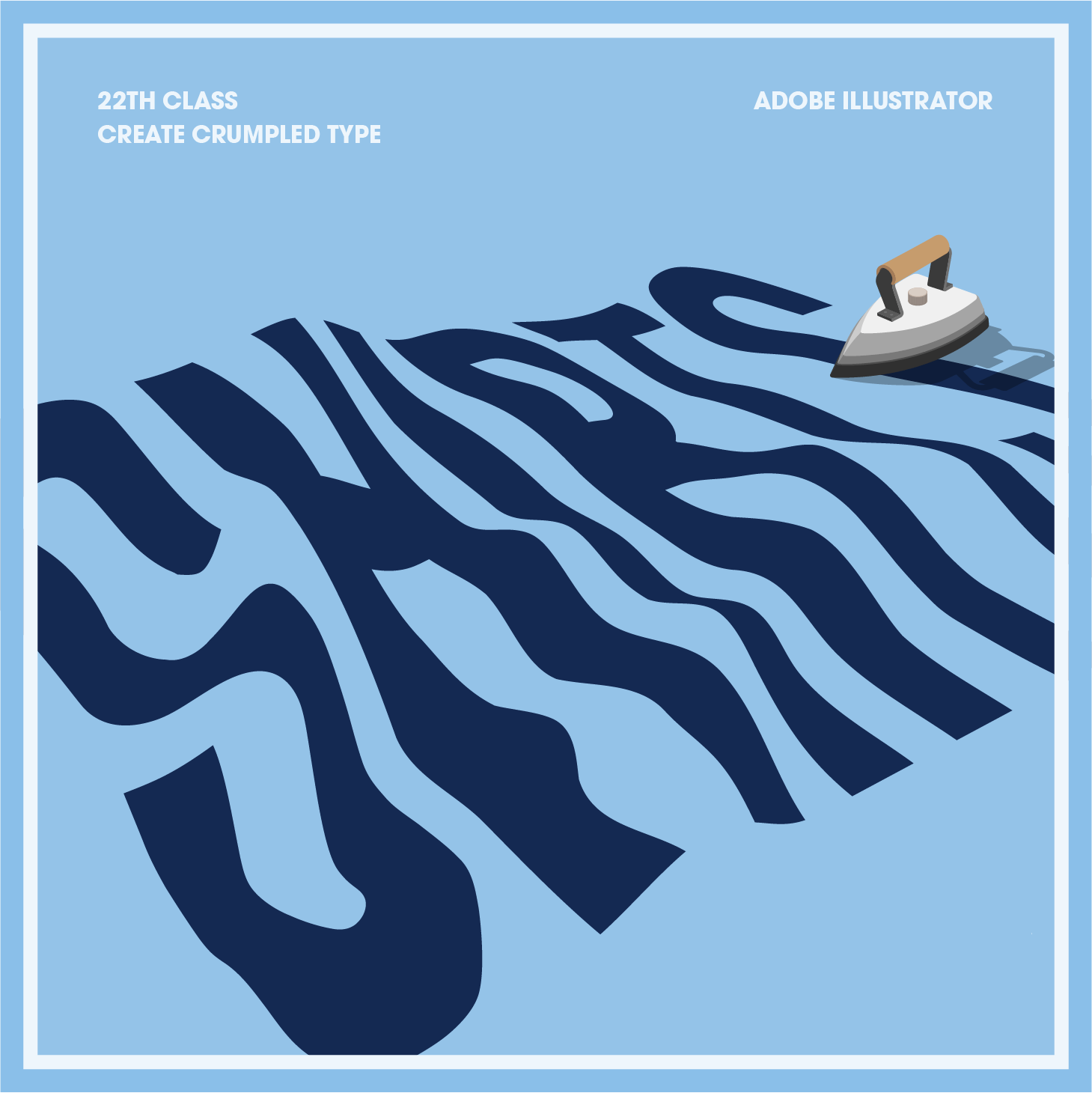
Warp Typography 03
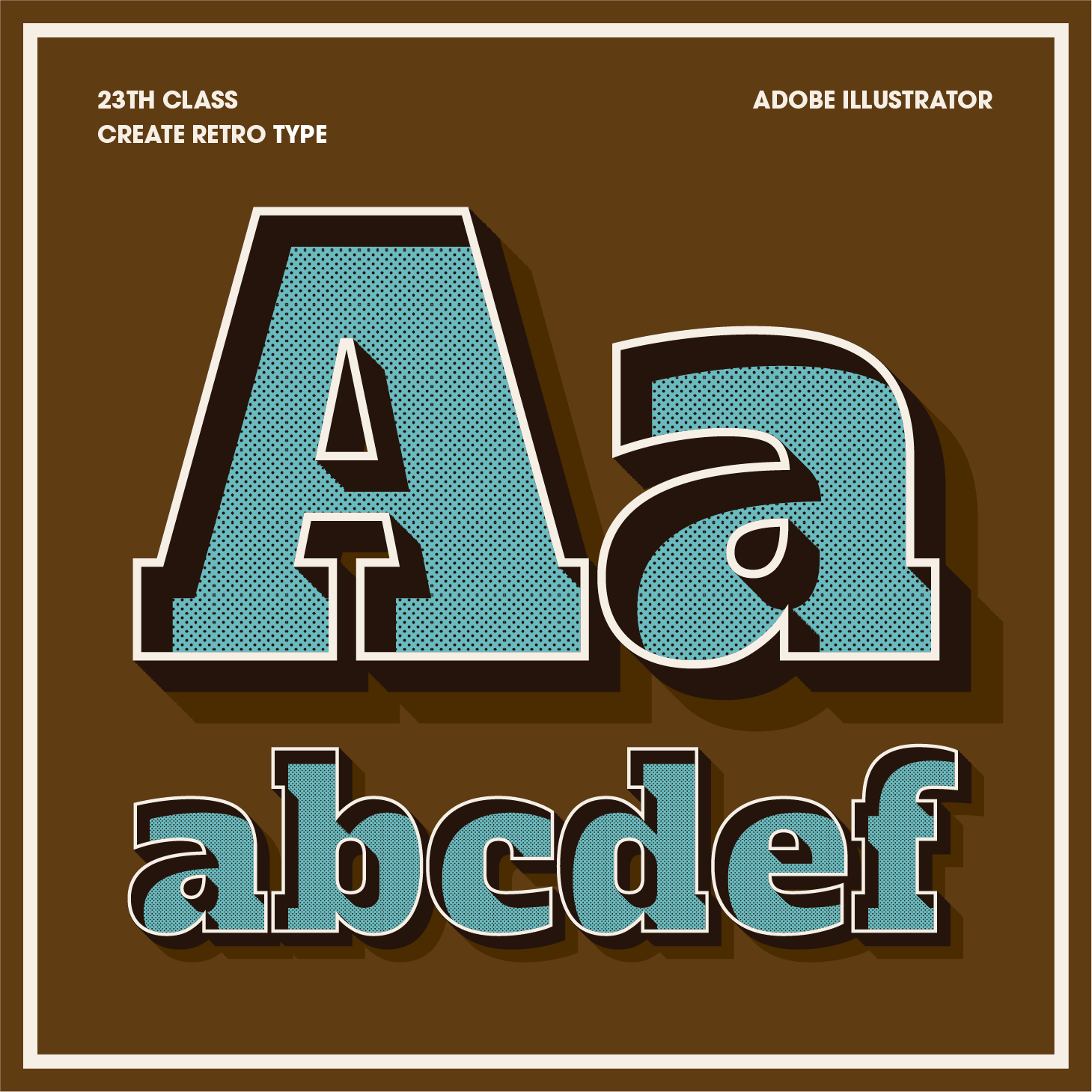
Create a Retro Type
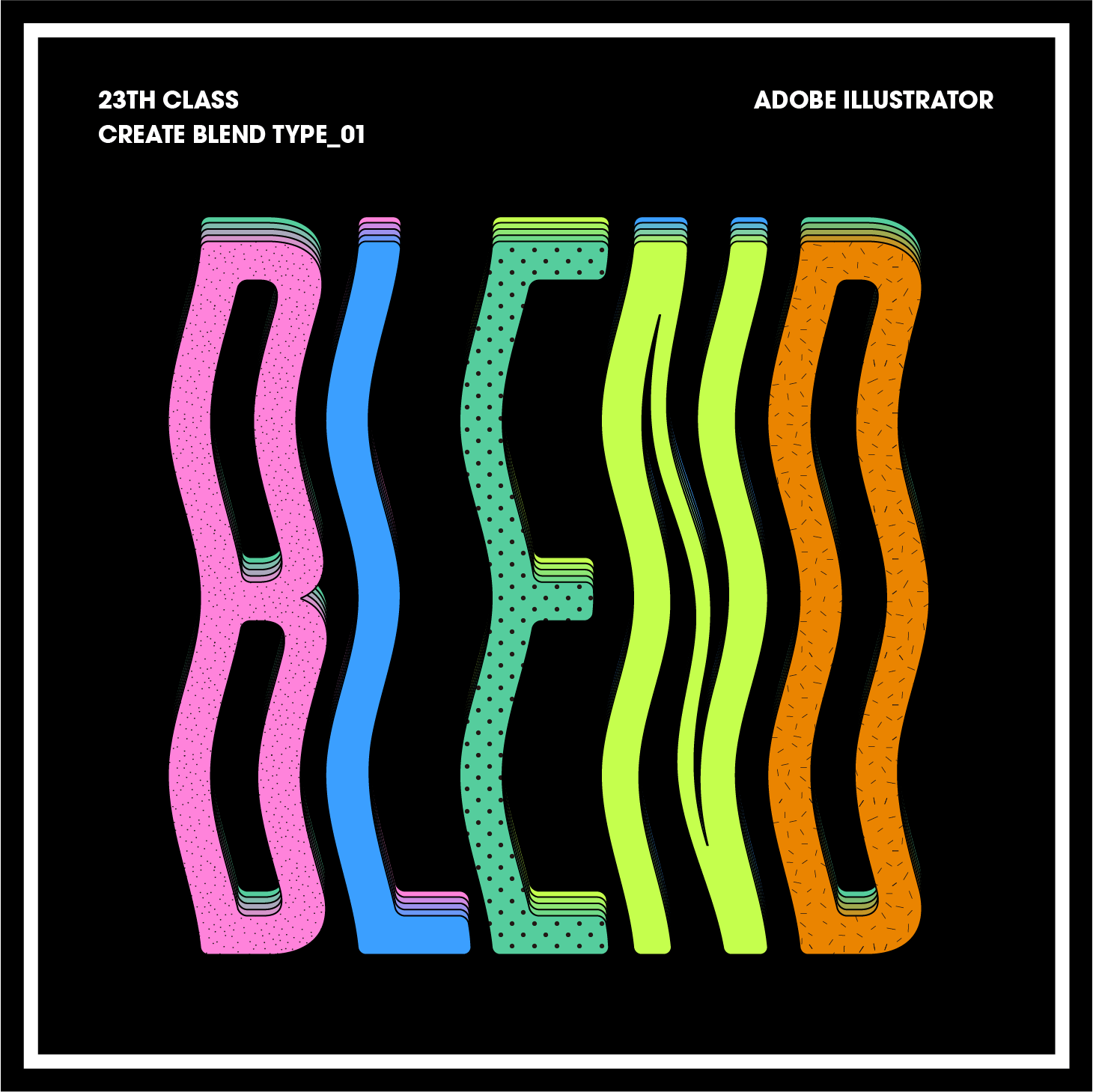
Blend Typography 01
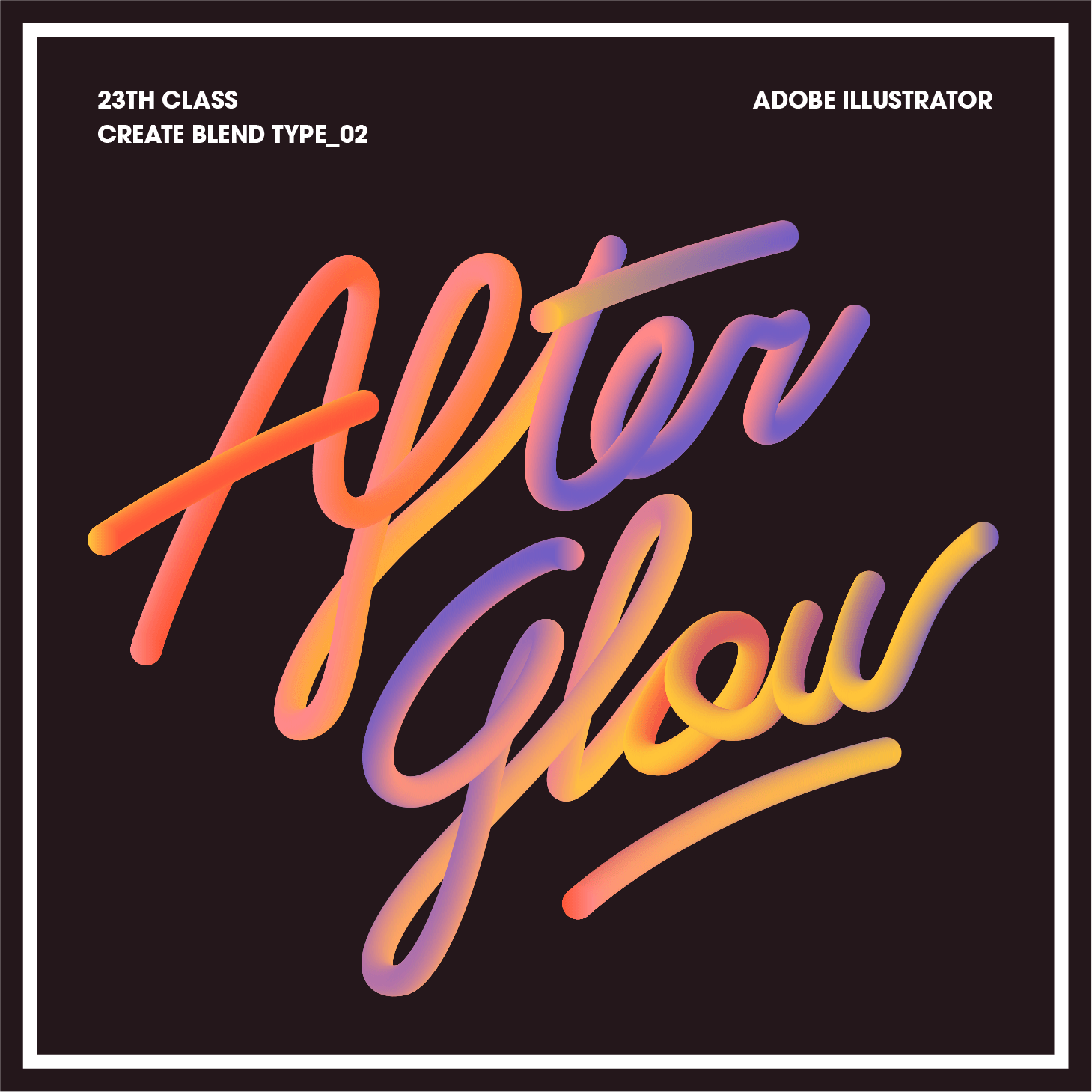
Blend Typography 02
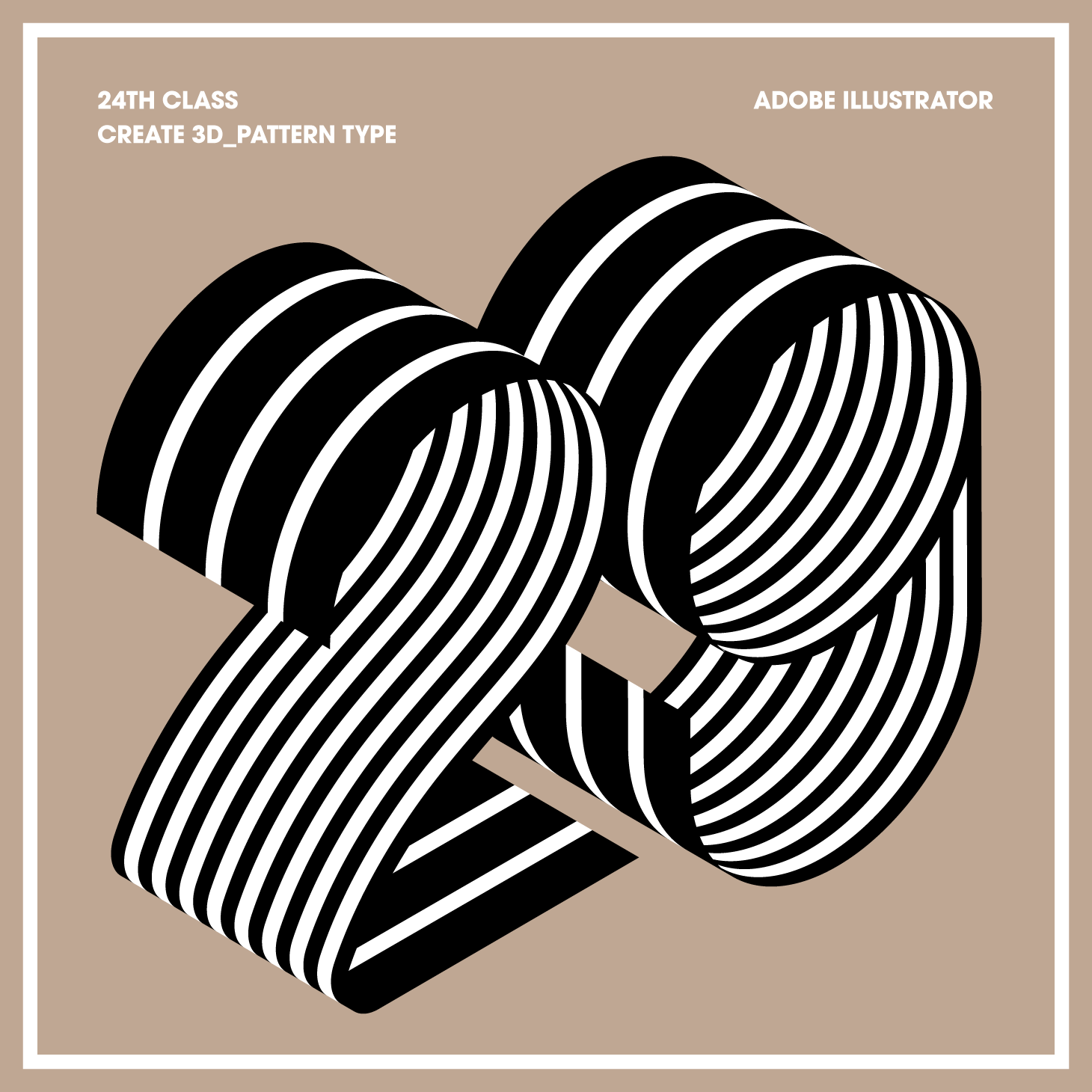
3D Pattern Typography
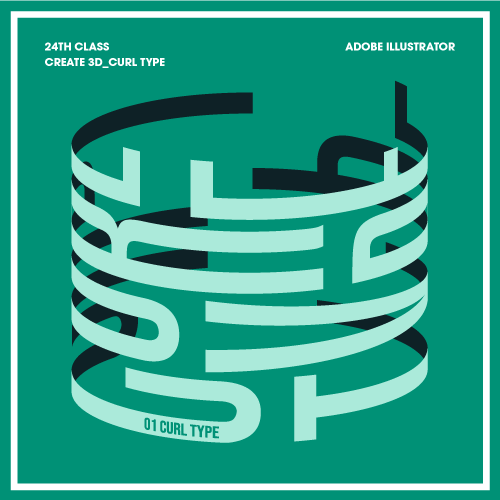
3D Curling Typography
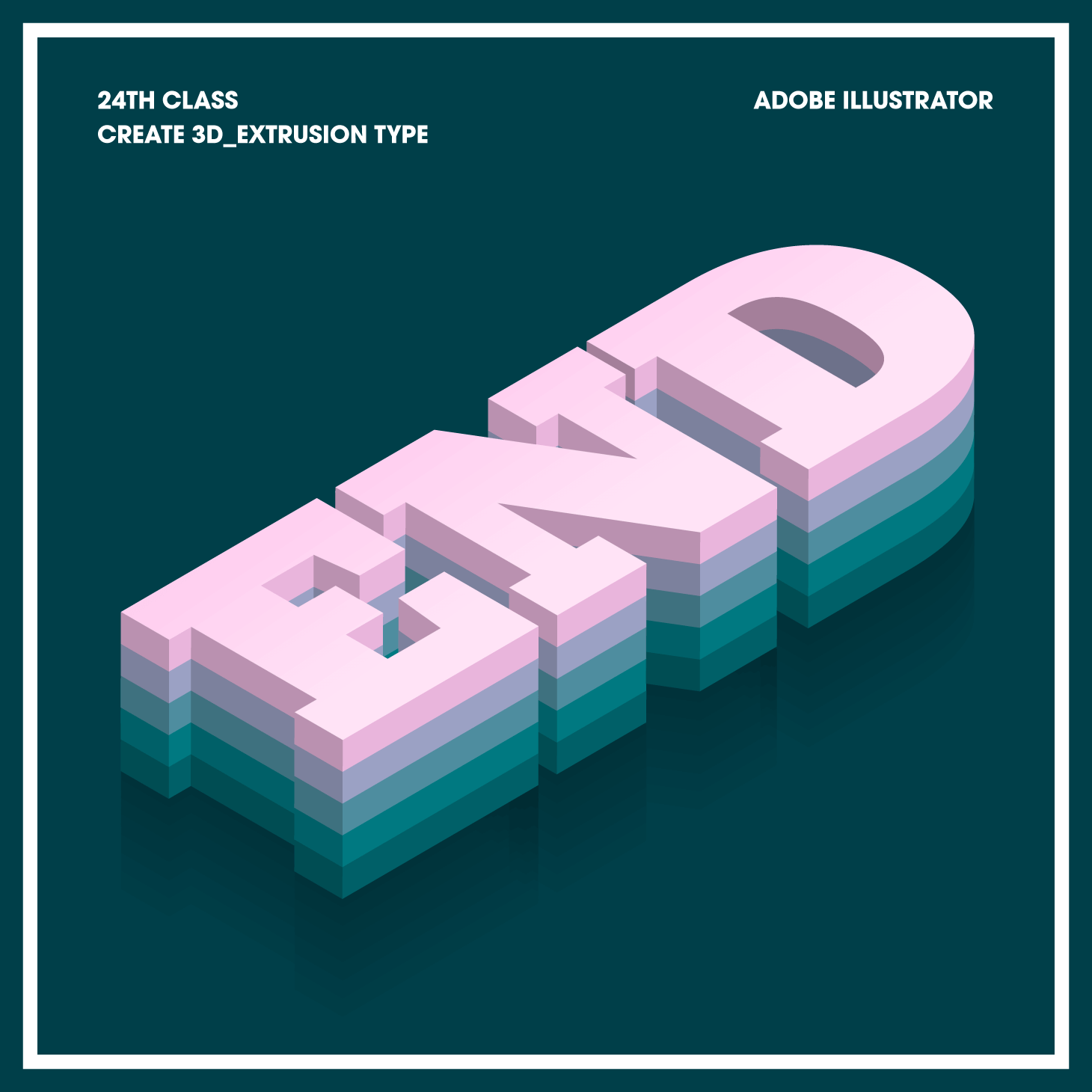
3D Extruded Typography
Speaker introduction
Illustrator
Hyekyung Shin
Hello, I’m illustrator Shin Hye-kyung.
I’ve been a freelance illustrator since 2009, collaborating with companies like B Magazine, Hyundai Card, Naver Labs, Samsung Electronics, SK, and E-Mart.
In today’s media-saturated environment, the ability to create eye-catching images is invaluable. Drawing from my experience in publishing, video, and infographics, I’ll share my know-how for creating engaging works, covering everything from tool basics to practical skills.

Illustrator
Hyekyung Shin
[Current]
Freelance illustrator
Projects & Awards
[Participating Project]
2022 | Samsung Electronics | Samsung Experience Zone Illustration Proposal | 2D flat illustration
2022 | Moloco | Official website illustration | 2D flat illustration
2021 | GS Construction | Web Magazine BA | Perspective space illustration
2021 | Shinhan Bank | Wall graphic illustration | 2D flat illustration
2020 | POSCO | Wall graphic illustration | 3D space illustration
2020 | Hyundai Card | Official app consumer care mobile illustration | Perspective illustration
2019 | Zigbang | Directory Magazine Publishing & Mobile Infographics | 3D isometric infographics
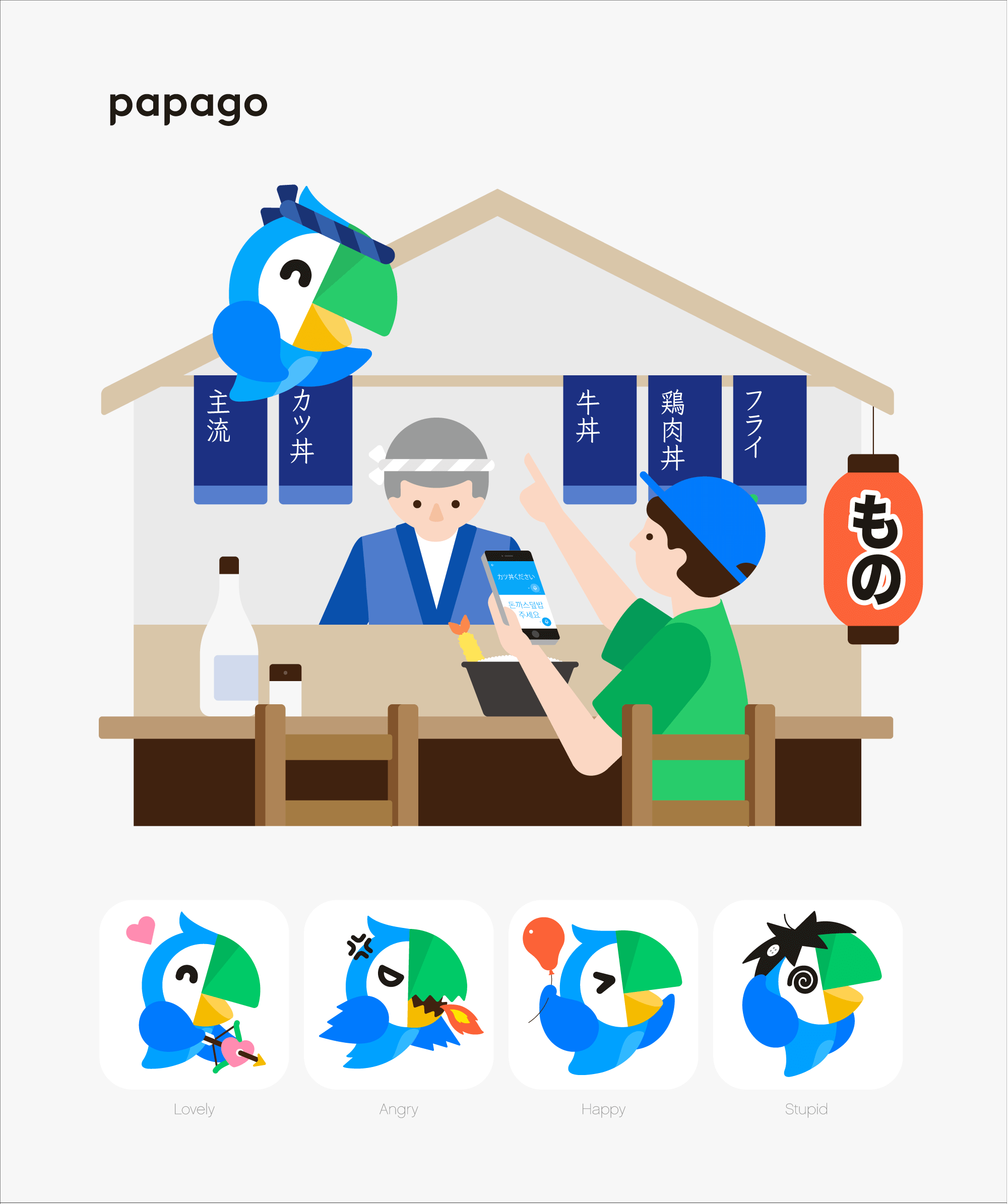
2018 | Naver | PAPAGO character expansion design | character design
2018 | Monocle | Monocle Magazine Publishing Illustration | 2D flat illustration
2017 | HDC | Hyundai I-Park Pictogram | pictogram design
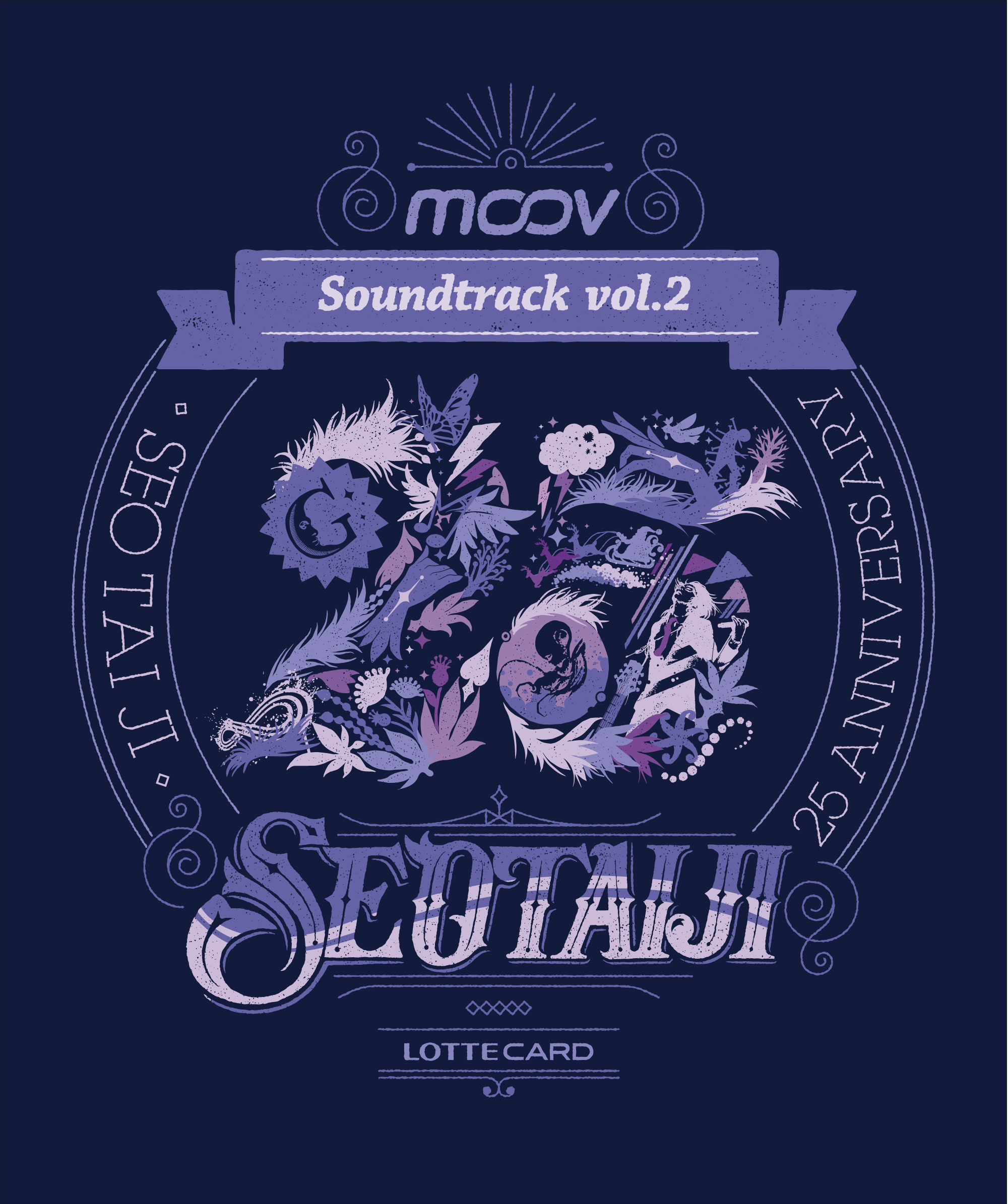
2017 | Lotte Card | Seo Taiji Sound Track Concert Web Teaser Illustration | emblem illustration
2017 | E-Mart | Life Container Advertising Video Illustration | 3D isometric illustration
2014 | Shinsegae | SSG vmd illustration | typography illustration
2013 | joh | Magazine B Publishing Illustration | 2D flat infographics
[Awards]
2013 | joh | Magazine B | Cannes Advertising Festival Silver Lion Award | Illustration participation
2010 | SK Week & T Trump Card | Red Dot Awards Communication Design Category | Illustration participation
2010 | NHN | Naver Green Factory Book | Red Dot Awards Communication Design Category | Illustration participation
class features
Class Highlights
Learn About the Basics of Adobe Illustrator
Starting from the basics of tools to the overall knowledge required for the program, I will systematically teach you the basics that are essential for everyone from beginners to intermediate illustrators.
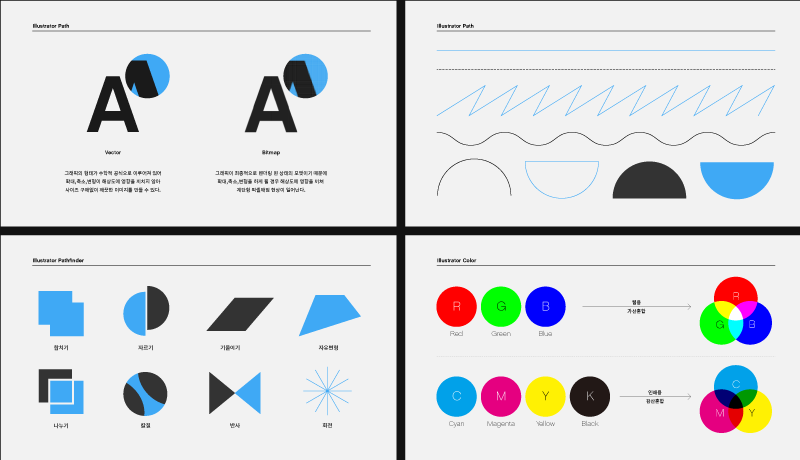
Know-How to Create Illustrations That Combine Usability and Design Sense
From simple and minimal icons to vintage and kitschy typography, we will create sensuous and new style illustrations in each chapter.
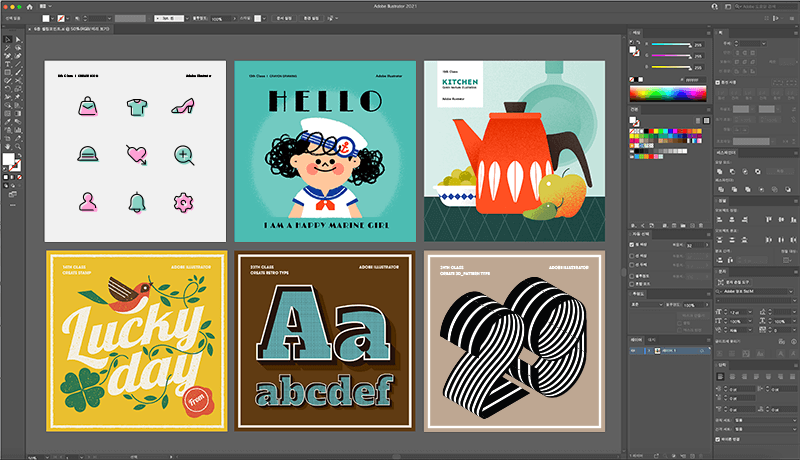
A Diverse Design Spectrum to Learn Through 20 Examples
Expand your design spectrum by experiencing examples of 20 styles based on 6 sections.
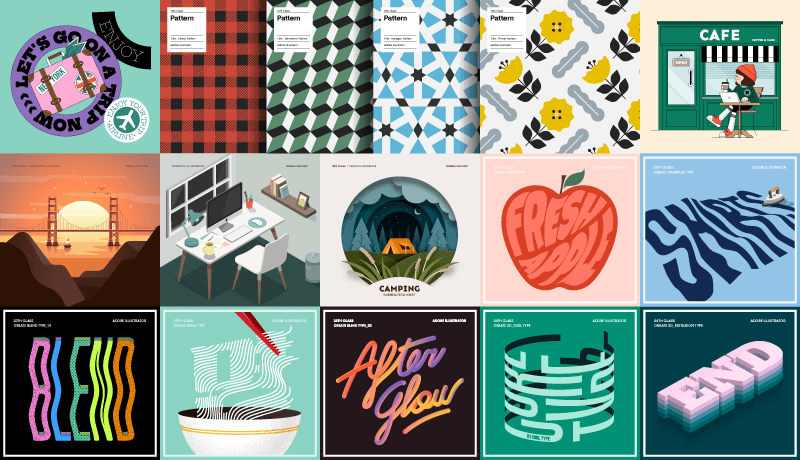
Class Details
You'll Learn
-
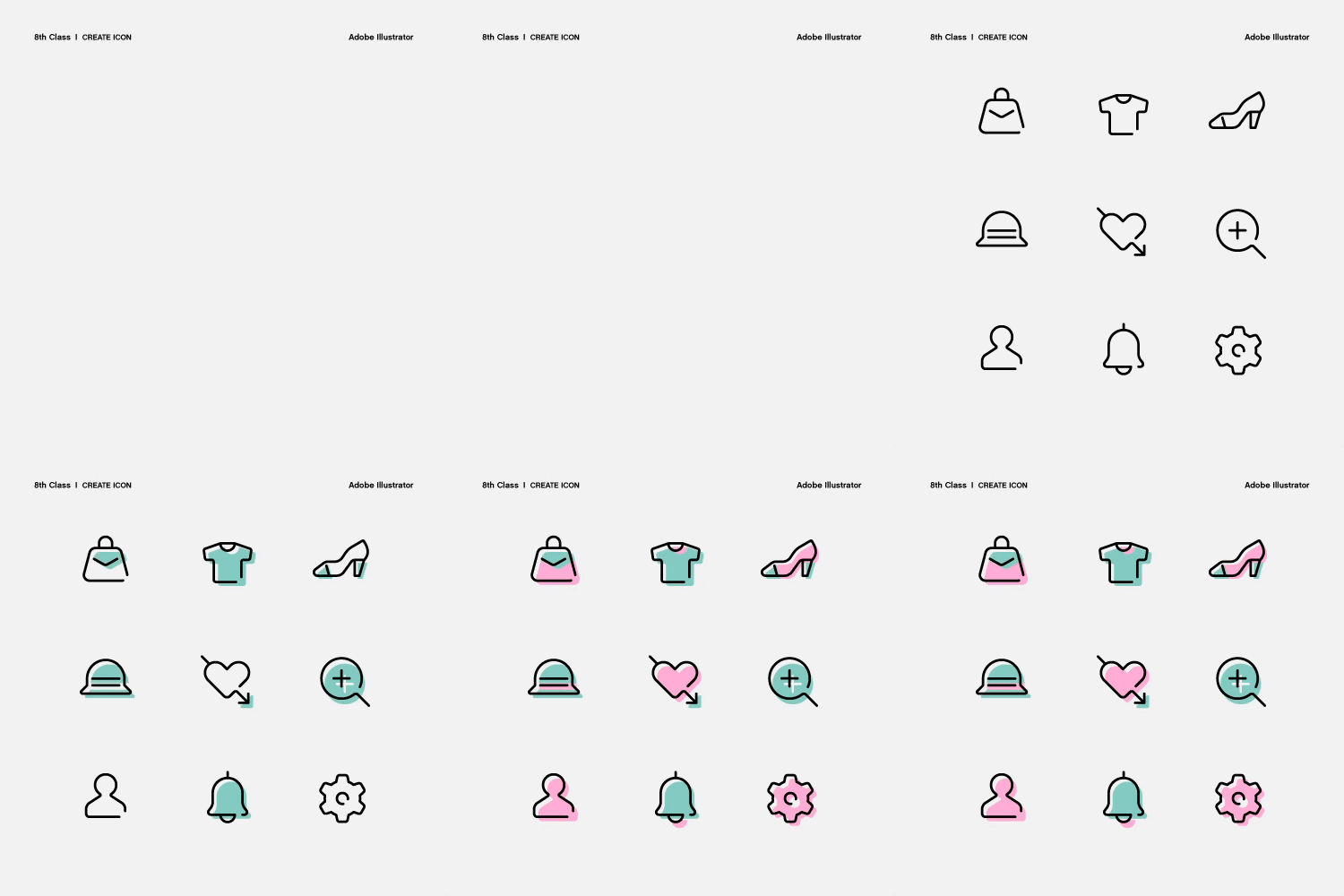 2D Basic Illustration Expressed in Simple GraphicsWe will use the pen tool and shape tool, which are essential functions of illustration, to shape the object and get a feel for the pen tool.
 -
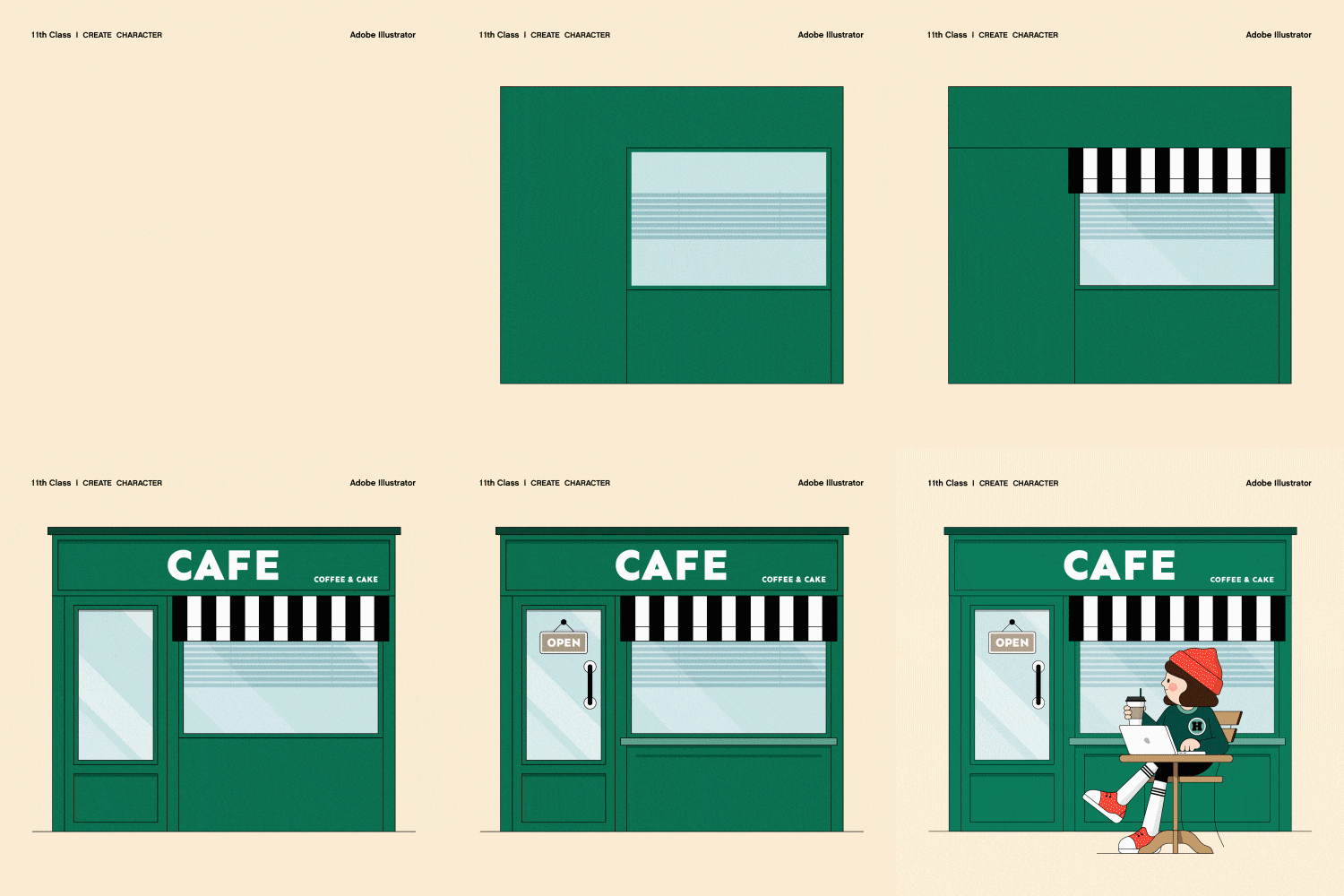 Drawing Characters and BackgroundsLearn how to effectively draw characters using shape composition tools and add light and shade to them.
 -
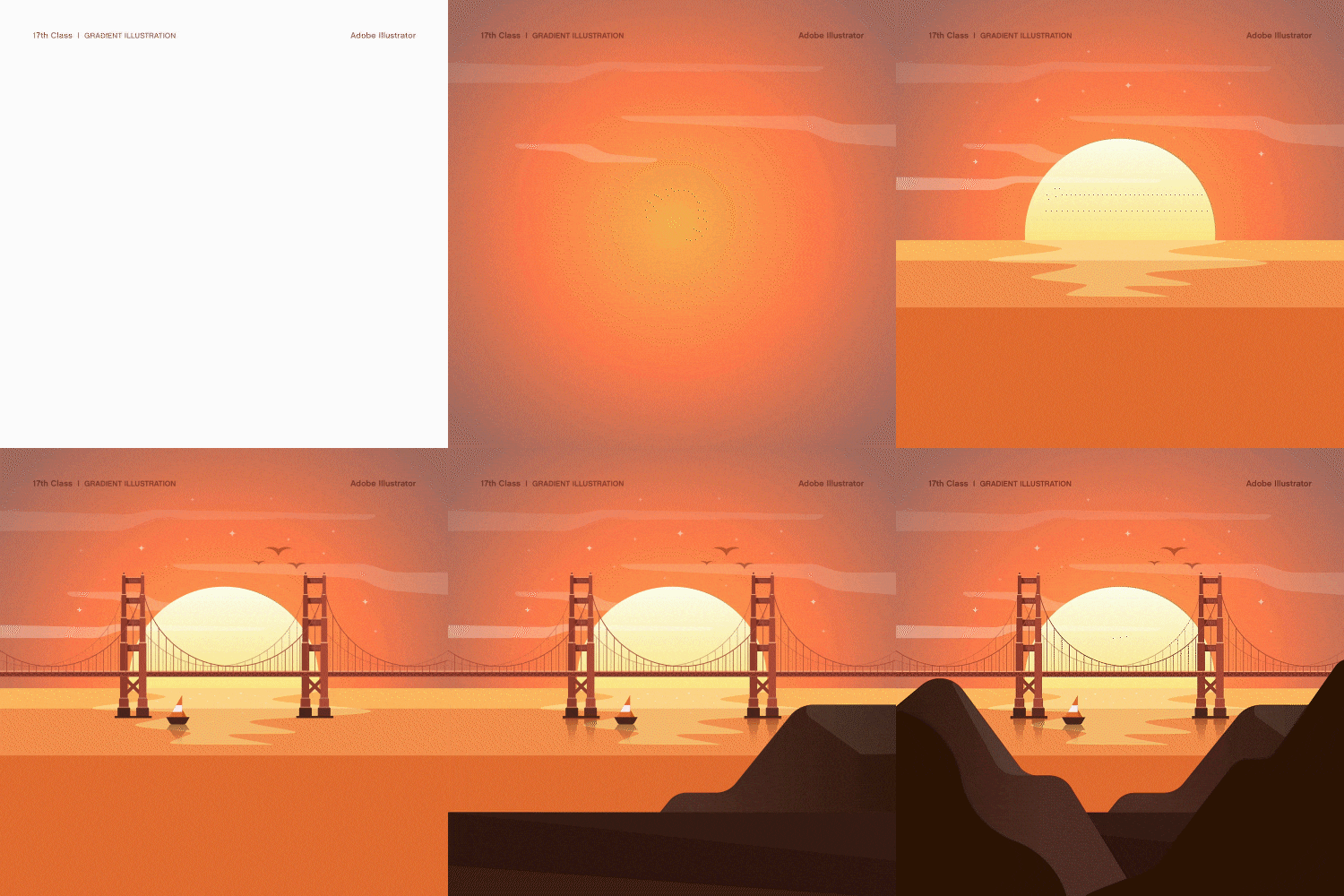 How to Use Filters and Brushes to Change the Completeness of an IllustrationLet's express a variety of textures that are completely different from the rigid vector feel, such as gradients, pointillism, hand drawings, and vintage effects.
-
 Isometric Illustration Expressing Space and Three-Dimensional ObjectsYou will learn how to create shapes using 3D effects, how to effectively add light and dark to three-dimensional objects, and how to easily change colors.
 -
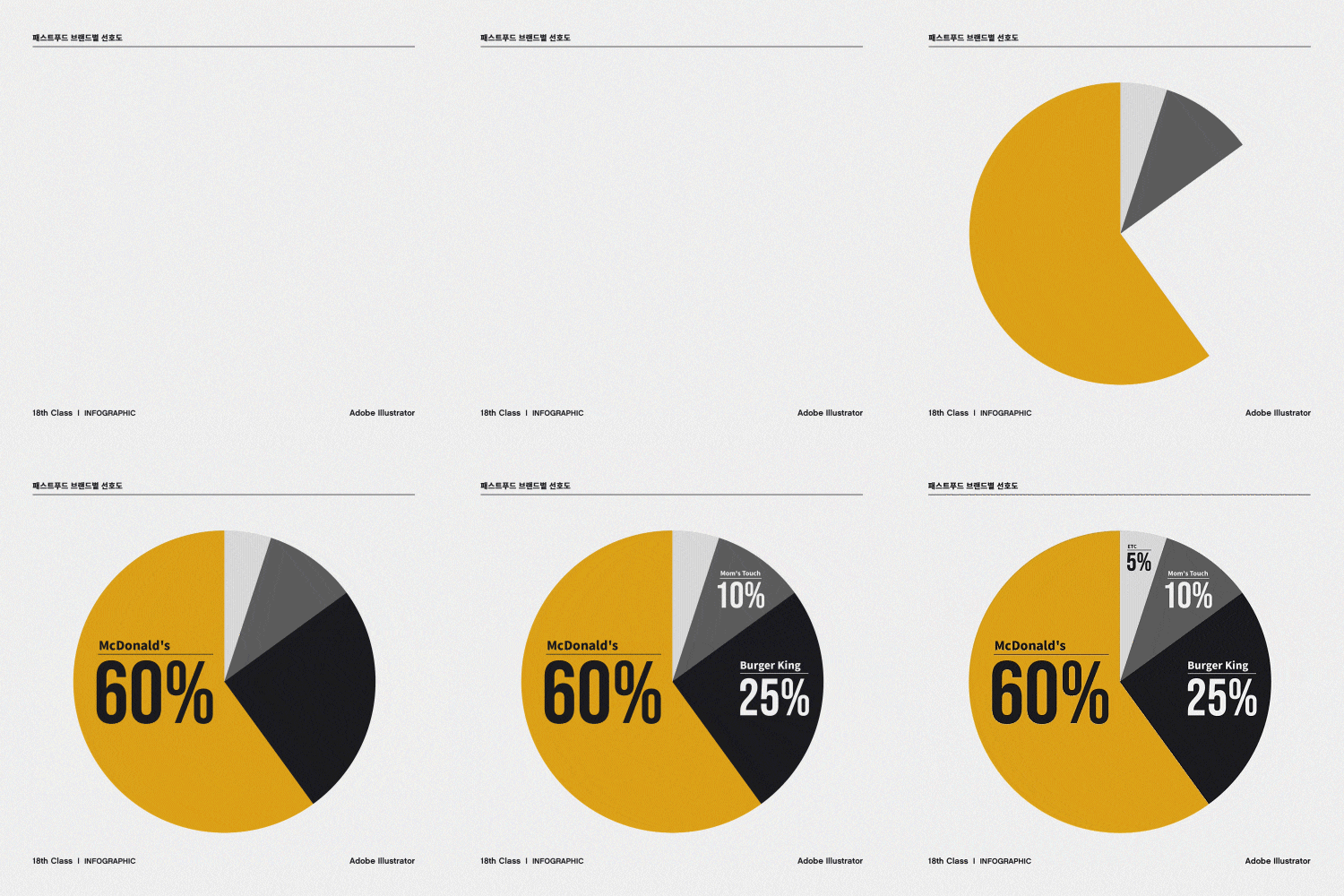 Stylishly Organized InfographicsCreate various graphs such as stacked bars, areas, pies, and designs, and learn how to visualize them naturally.
 -
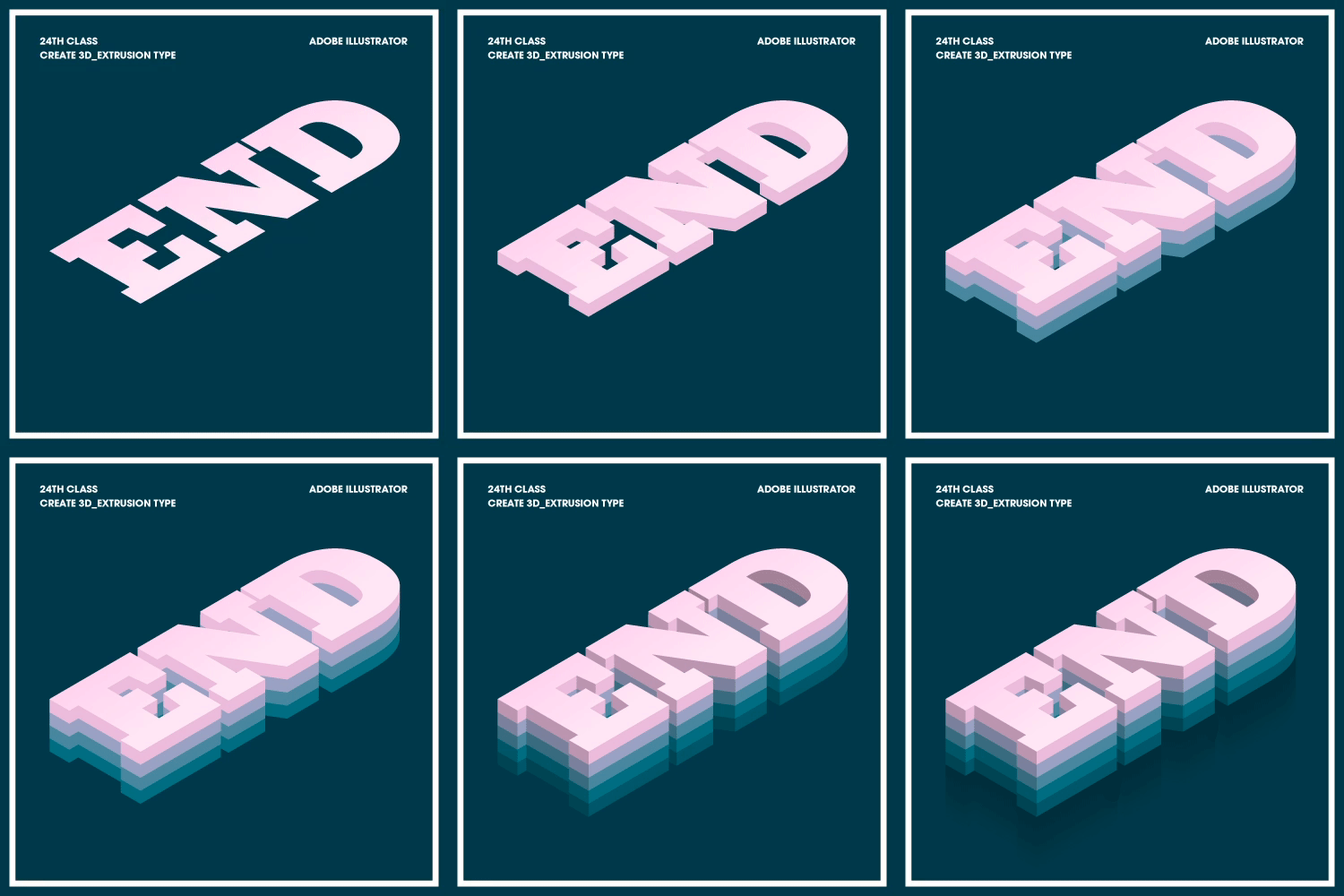 Typography in a Variety of WaysYou will create more than 8 different types of typography by applying various shapes and patterns through type.
curriculum
Curriculum
In-Depth Look
SECTION 01. OT
01. Orientation
- Introduction
- Course objectives
- Class Materials & Class Preparation
Special: Q&A Top 10 Questions Asked by Beginners
- Objects & Tools
- Artboards & Layers
- Screen viewing area
SECTION 02. Adobe Illustrator
02. Illustrator Concept and Screen Composition & Shortcut Keys
- Difference Between Vector and Bitmap
- Illustrator screen composition
- Screen settings settings
- Frequently used shortcut keys
03. Pen Tool
- lines and planes
- Understanding the Pass
- Concept of open and closed paths
- Global Selection Tool and Direct Selection Tool
- Practice
04. Object Transformation
- Corner control
- Pathfinder
- Scissors tool and knife tool
- Skew Tool & Free Transform Tool
- Reflection Tool & Rotation Tool
- Copy & Paste
- Organize the order
05. Layers and Clipping Masks
- Concept of layers
- Clipping Mask and Opacity Mask
06. Types of Resolution and Storage
- Concept of resolution & recommended resolution for each medium
- Using artboards
- Save as program
- Save as image
SECTION 03. Color
07. Understanding color
- Concept of CMYK and RGB
- Hue / Saturation / Brightness
- Color & Swatches Panel & Saving Colors
- Conditions for a good color combination
- Reference site
SECTION 04. Basic 2D illustration
08. Icon
- Shape the icon using the shape tool and pen tool
- Transform objects using Pathfinder & rotation tools & edge control
- Connecting average points and using the connection function
- Inserting color using face color
- Cut a stroke using the Scissors tool
09. Emblem
- Drawing a suitcase using a shape tool
- Using the Type Tool and Tools on Paths
- Use the character editing tool to capture text tracking details
- How to change the direction of a sentence using the character options on the path
10. Pattern
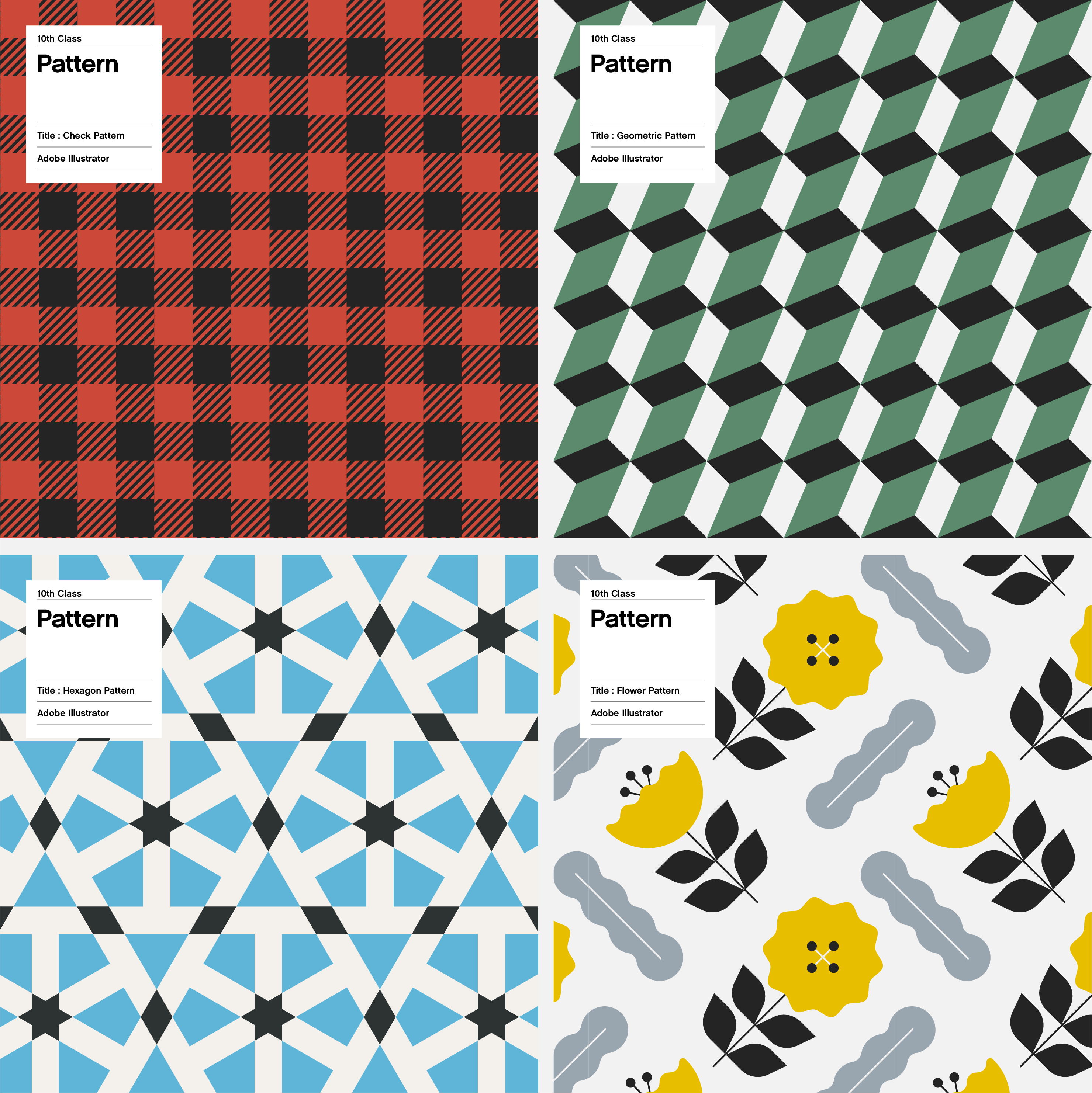
- Producing various types of patterns (check pattern, geometric pattern, hexagon pattern, flower pattern)
* Transform patterns with pattern options, resizing tools, and individual transformations
SECTION 05. Character
11. Background
- Drawing a cafe building using the pen tool and shape tool
- Apply contrast to buildings
12. People
- Drawing props using the pen tool (people, table, laptop, coffee, chair)
- Coloring using shape composition tools
- Apply light and shade to a person using the knife tool
Section 06. Expressing Various Textures with Filters and Brushes
13. Smooth Gradient Landscape
- Drawing using the pen tool (rocks, ships, rivers, bridges, sunsets, clouds)
- Using linear and radial gradients
- Things to keep in mind when using gradients
14. Grain Texture Illustration
- Drawing using the pen tool (kettle, apple, pepper, grape, frying pan)
- Apply a gradient mask to an object using an opacity mask
- Apply Grain Texture in Photoshop Effects
- Adjust document raster effect settings
15. Crayon Brush Illustration
- Drawing a marine girl character using the pen tool
- Extracting vector brush source from bitmap image (image tracking)
- Creating a crayon art brush (Artbrush option)
- Creating a spray-type scatter brush (scatter brush option)
- Apply brush effect to marine girl character
16. Vintage Stamp Effect
- Type transformation using the type tool, text touch-up tool, and shear tool
- Change materials using Roughen, Inner Glow mode, Mezzotint effect, and Stamp effect
- Vectorization with shape expansion and image tracking
- Mixing matching effects with a crayon art brush
17. Paper Illustration
- Drawing using the pen tool (grass, hills, trees, tents, clouds, moon, background)
- How to use the shadow creation function
SECTION 07. Isometric Illustration
18. Space
- The concept of isometrics
- Give 3D effects to objects (floor, walls, windows, shelves, desks, chairs)
- 3D (default): Extrusion and Bevel
- Changing Artwork Colors: How to Change Colors Efficiently
19. Cube object
- Give 3D effects to objects (computer, keyboard, mouse, report, book, picture frame)
- 3D (basic): extrusion, tilt, rotation
20. Circular Object
- Give 3D effects to objects (stand, pencil, pencil holder, mug, trash can)
- 3D (default): Rotation around axis
SECTION 08. Infographics
21. Create Infographics
- Create various types of graphs (stacked bar graph, area graph, pie graph, design graph)
* Using graphing tools, dotted lines
SECTION 09. Typography
22. Typography Using Wraparound Distortion
- Inserting the Fresh Apple type into an apple shape: Creating a top-level object
- Expressing the wave noodle hair of the letter ‘Noodles’: made with net, using grain texture
- Expressing the crumpled letters of 'SHIRTS': 3D rotation effect, made with mesh
23. Retro Type Creation & Typography Using the Blend Tool
- Retro Type: Using the Shape Panel and Patterns
- Wavezine Blend Type: Using font transformation, blend tools, and patterns
- After glow type: draw font lines with the pen tool, blend tool, change spine
24. Typography Using 3D Features
- 3D three-dimensional pattern typography: symbol + 3D effect (projection, slope, art mapping)
- 3D curling typography: symbol + 3D effect (rotation around axis, art mapping)
- 3D extrusion typography: 3D effect (extrusion and slope) + gradient + shadow creation
SECTION 10. Conclusion
25. Living as an Illustrator
- What you need to prepare to work as a freelancer
- What you should not miss while working and your attitude toward work
- A story about contracts and costs that freelancers should be careful about
- The secret to surviving in one field for a long time
* Curriculum details may change before or after the video is released.
Interview with
Illustrator, Hyekyung Shin

Question.01
What are your strengths as an illustrator?
What are your strengths as an illustrator?
Having worked as a freelancer without any affiliation for 13 years, I was able to naturally experience various styles of illustration . In this class, we have structured the curriculum to take advantage of this and experience examples of various styles to find a style that suits each person, and to naturally develop a variety of graphic senses .
Question.02
What skills do prospective/current illustrators find difficult?
What skills do prospective/current illustrators find difficult?
Beginners who are not familiar with using paths may find it very awkward to use the pen tool. In this class, we will gradually increase the frequency of use of the pen tool so that you can experience its functions step by step. From creating icons using basic shape tools to creating emblems, patterns, characters, and backgrounds one by one , you will naturally become familiar with the pen tool.
Question.03
What are the main points of this class?
What are the main points of this class?
The curriculum has been designed so that both beginners and intermediate users in the field can enjoy the learning process itself. Beginners will learn the know-how to create graphic and beautiful illustrations with simple tools and functions , while intermediate users will experience the joy of upgrading their capabilities through new style experiences .
Question.04
Who do you recommend this class to?
Who do you recommend this class to?
I recommend it to non-major beginners who want to draw pretty pictures in illustrator, prospective illustrators who have not yet found their own style, working designers who have difficulty using tools freely, and working illustrators who feel the limitations of their own expression.
Required Programs
This course will use
- Adobe Illustrator CC 2021.
Please purchase and install these programs for an optimized chapter experience.
*These programs and/or materials will not be provided with the course.