cartoonist,shiomiya_시오미야JP Details
Intro

Now in Your Language, Only on Coloso!
Learn from Japan's Top Master Creatives
-
 Blender Techniques for Comics
 -
 Optimized Scene Workflow
 -
 Practical Asset Creation
Class Intro
Cartoonist, Shiomiya
"Bring your comic worlds to life in Blender by learning Shiomiya’s step-by-step 3D background techniques, from modeling and lighting to composing full comic scenes."
Learn a Practical and Professional Comic Workflow in Blender
Shiomiya is a cartoonist and illustrator who also develops 3D assets and add-ons to help creators.

In this class, he explains practical Blender techniques tailored to manga and comic creation in detail. 3D software is a powerful tool for drawing backgrounds, especially if you struggle with them. Learn efficient techniques for setting up camerawork, line art and tones in 3D, so you can finish your comics faster.
In this class, he explains practical Blender techniques tailored to manga and comic creation in detail. 3D software is a powerful tool for drawing backgrounds, especially if you struggle with them. Learn efficient techniques for setting up camerawork, line art and tones in 3D, so you can finish your comics faster.
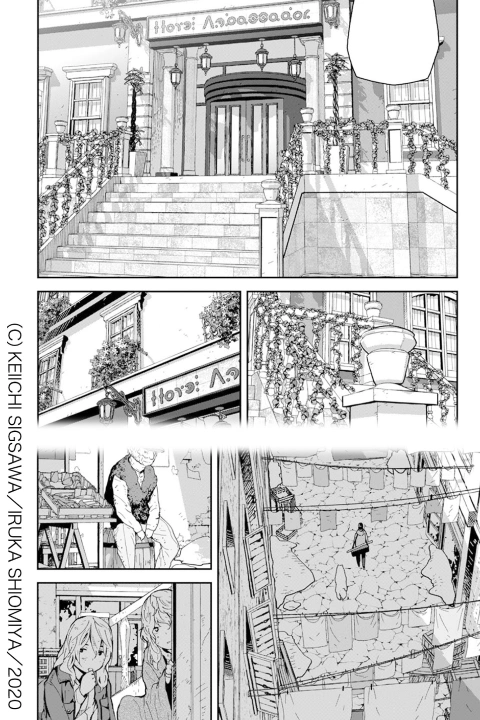
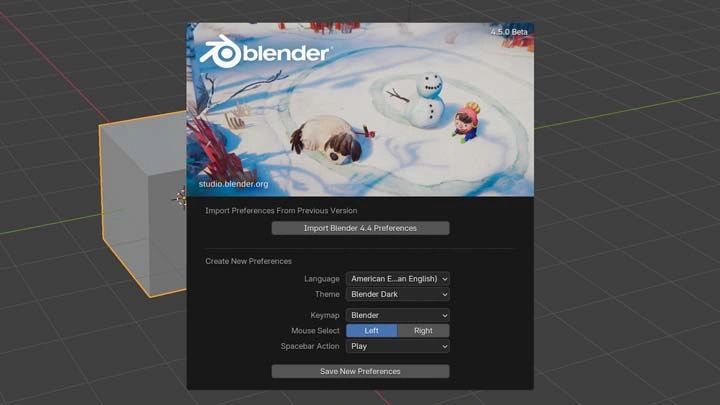
This class covers Blender basics in detail, including essential settings and features, so even beginners who just installed the program can follow the workflow.
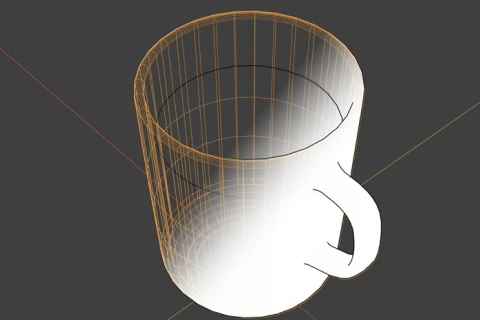
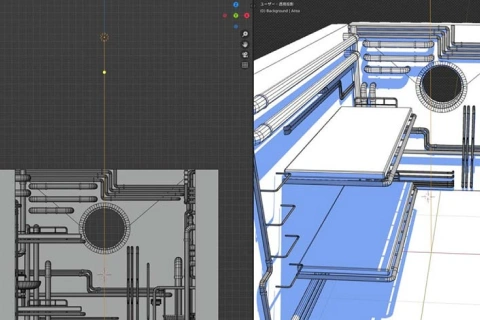
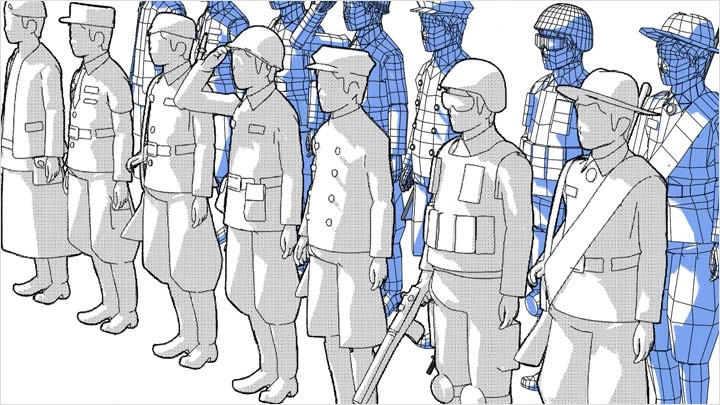
You’ll learn how to set the number of vertices to create clean Freestyle lines, as well as modeling methods that focus on making cartoon-style lines and shadows that don’t look too stiff.
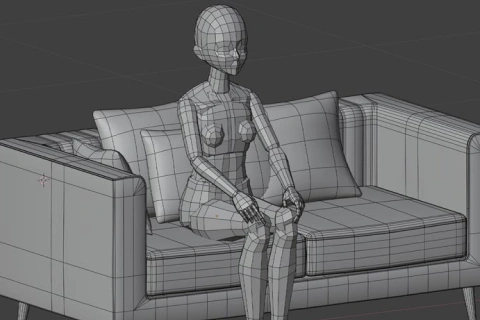
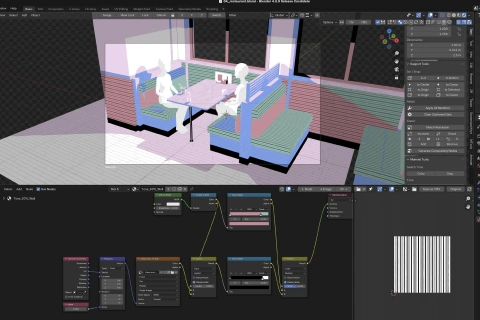
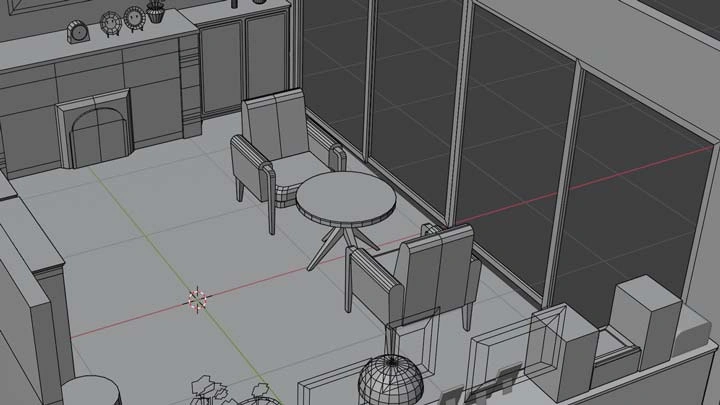
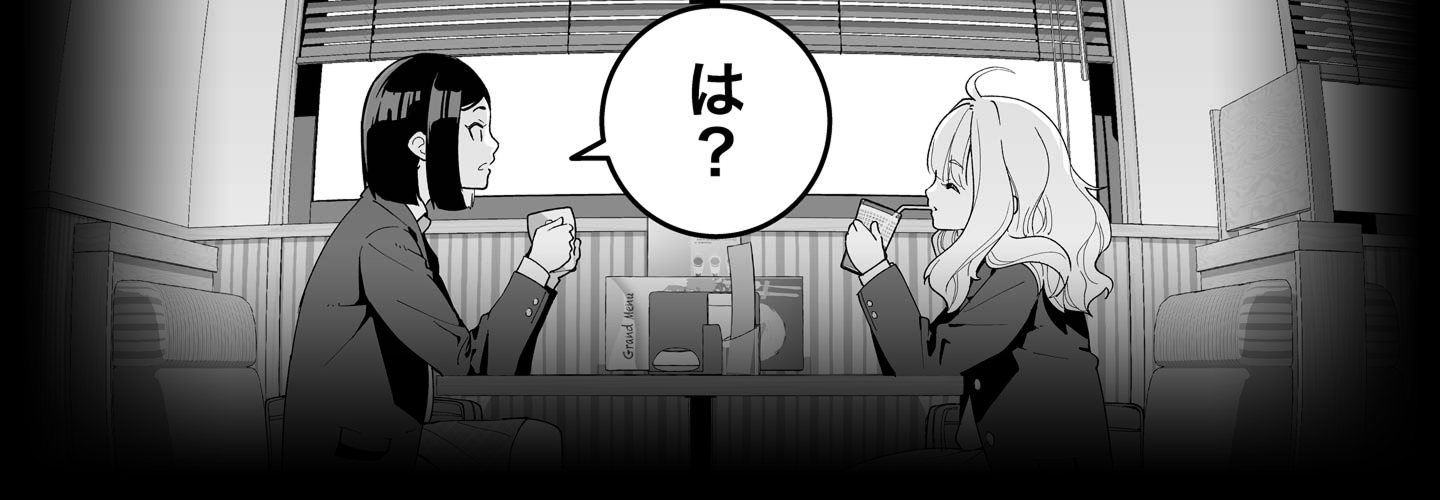
Through an exercise on creating a background for a diner, you’ll model objects of all sizes, practice combining characters and backgrounds harmoniously, apply textures, and create manga-style halftones.
Make Blender your personal cartooning assistant, gaining skills you can use right away with hardly any practice.
Join this Coloso class now, and use 3D technology to overcome your fear of drawing backgrounds for your comics.
You’ll learn how to set the number of vertices to create clean Freestyle lines, as well as modeling methods that focus on making cartoon-style lines and shadows that don’t look too stiff.
Through an exercise on creating a background for a diner, you’ll model objects of all sizes, practice combining characters and backgrounds harmoniously, apply textures, and create manga-style halftones.
Make Blender your personal cartooning assistant, gaining skills you can use right away with hardly any practice.
Join this Coloso class now, and use 3D technology to overcome your fear of drawing backgrounds for your comics.
Class Preview
Still Not Sure?
Check Out Shiomiya's Class Preview!
17. Setting up Freestyle
- Basic settings
- How to give a hand-drawn look to lines
- Varying the thickness of lines by distance
- How to give a hand-drawn look to lines
- Varying the thickness of lines by distance
Class Perks
Special Gift from Shiomiya
-
 Unlimited access to 29 Chapters packed with Shiomiya’s 3D background design expertise
 -
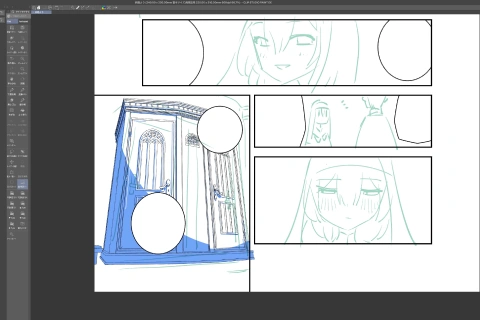
 Complete one finished comic scene through the course
 -
 Includes 3D models and assets used in class
Class Material Details
-
 Files Related to Class Content- 3D models created in class
- Assets -
 Other Resources- CLIP files of cartoons
- Class materials (PDFs)
Recommendation
Who should take this class?
Aspiring comic artists seeking efficient 3D workflows in Blender
Comic creators who want to build complete scenes with 3D backgrounds
Illustrators looking to expand into comic storytelling
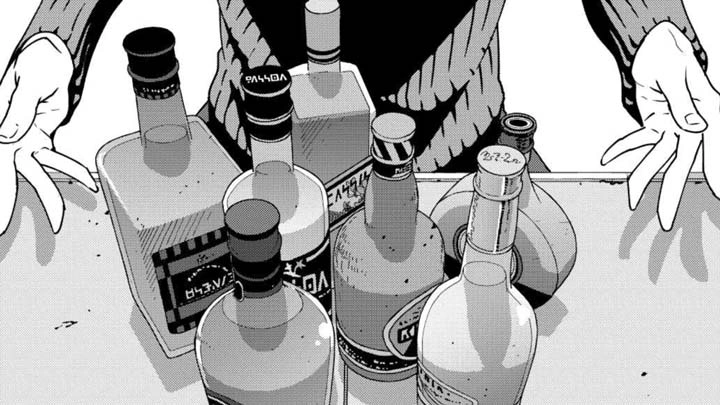
Expert Cartoonist Shiomiya's Portfolio
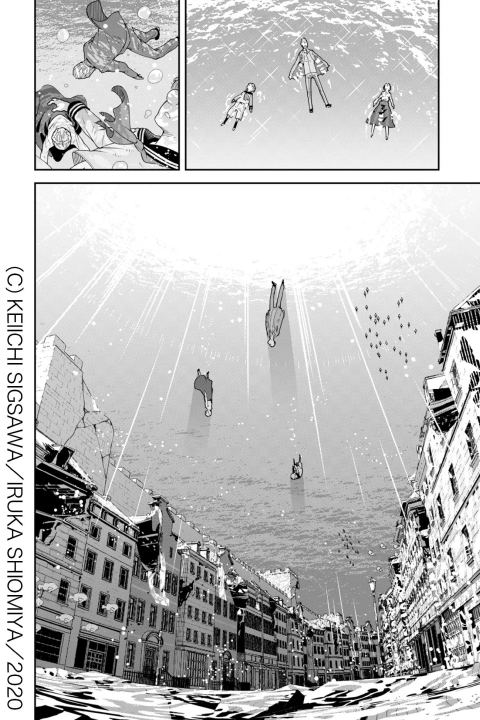
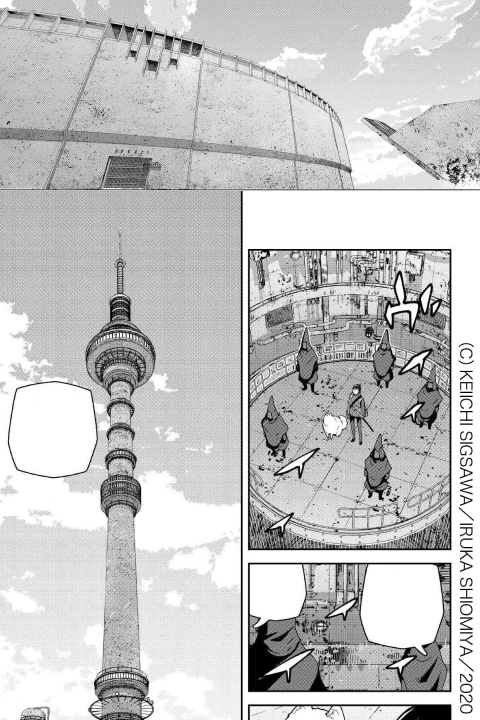
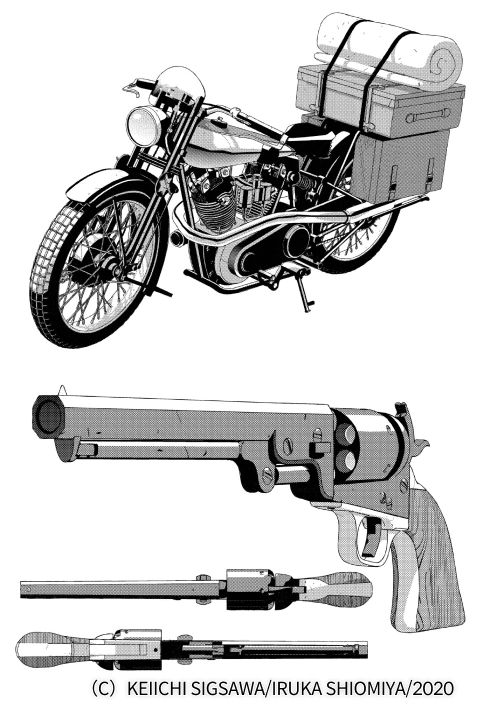
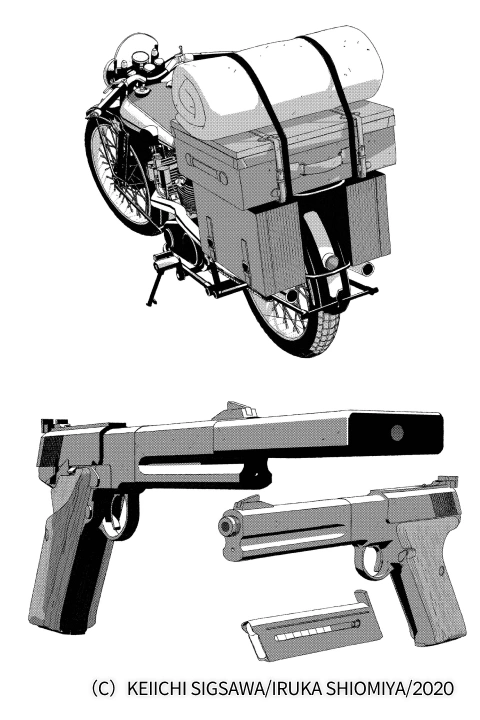
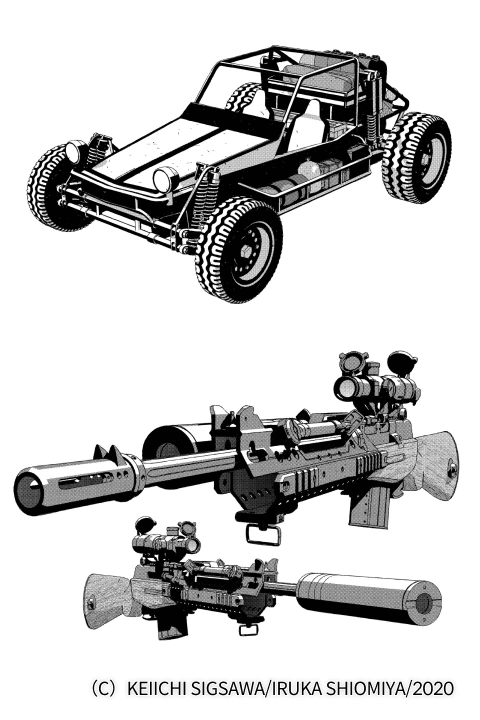
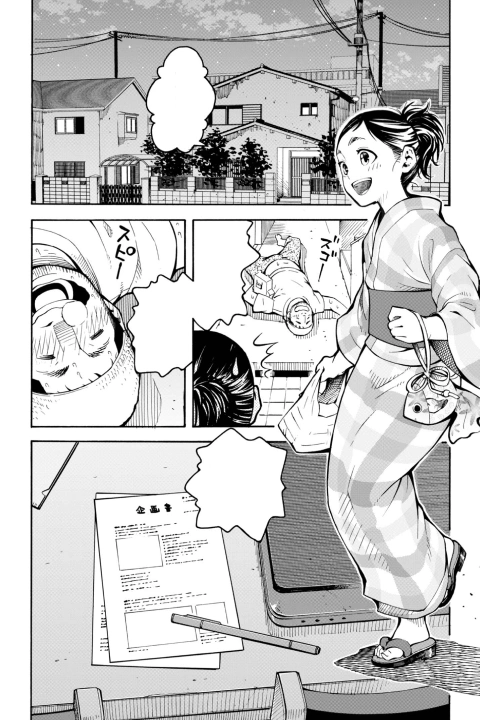
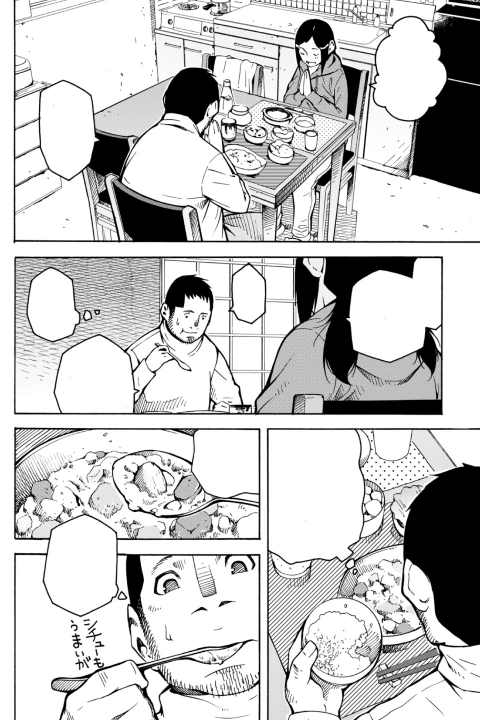
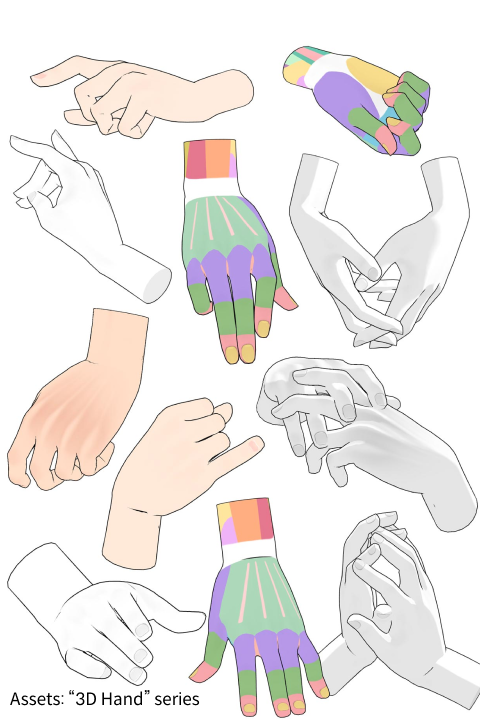
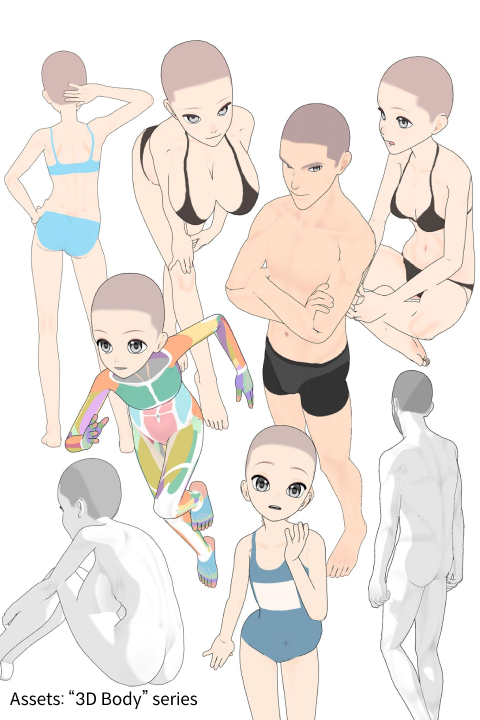
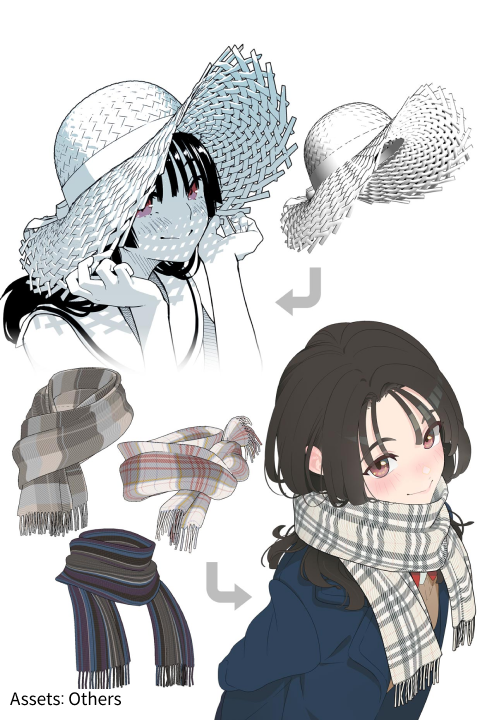
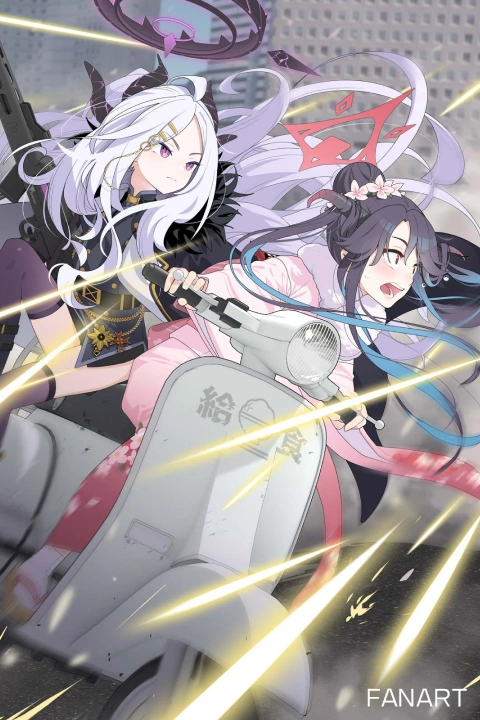

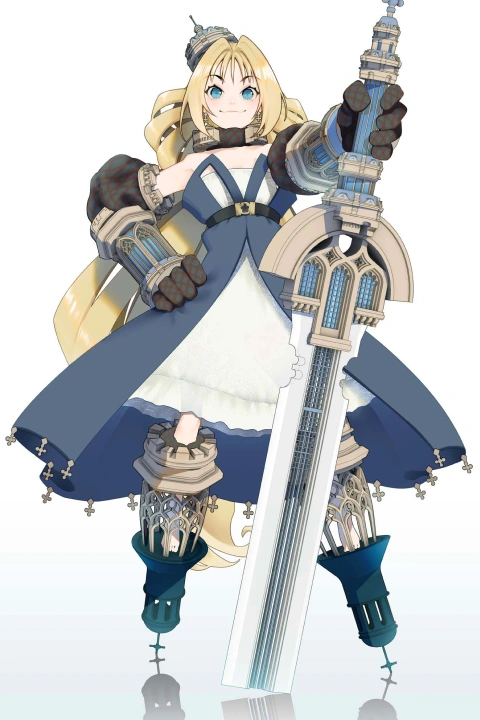

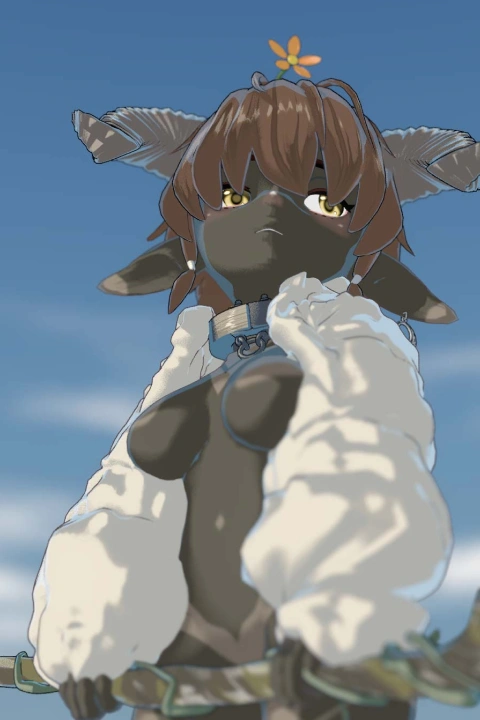
Why Take This Class?
Learn how to bring your comics to life using Blender’s powerful 3D tools. In this class, professional manga artist Shiomiya breaks down an efficient workflow for designing and integrating 3D backgrounds into comic panels, helping you achieve professional-level results with less time and effort.
Whether you’re new to 3D or already creating comics, you’ll discover practical techniques for modeling, lighting, and compositing scenes that perfectly fit your story. By the end of the course, you’ll complete one full comic scene from layout to final rendering and gain the confidence to use Blender as a core part of your comic production process.

Get Ready for the Real-World
Create 3D Backgrounds in Blender Through Practical Exercises
-
 Basic Settings and Features of Blender
 -
 Creating Small Objects Through Clean-Lined Modeling
 -
 Creating Medium-Sized Objects Through Precise Scaling
-
 Creating Large Objects Through Scene Adjustment and Optimization
 -
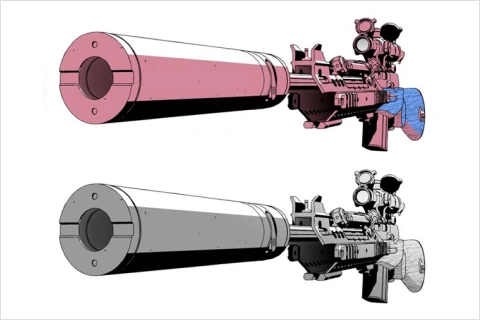
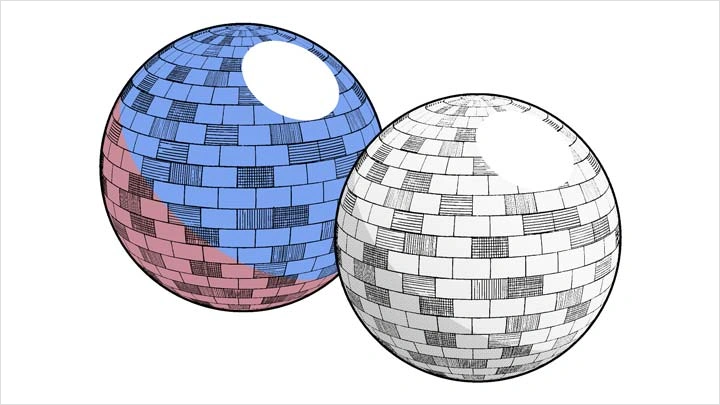
 Creating Halftone Effects Using Materials and Textures
 -
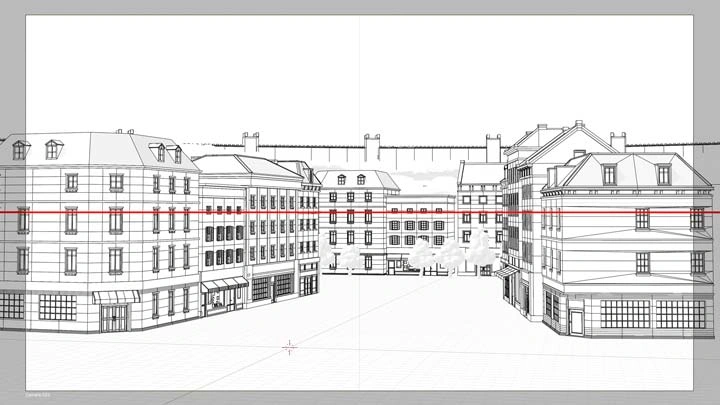
 Camera Techniques Tailored to Comics (Perspective, Adding Horizontal Lines)
-
 Simplifying 3D Work Into Line Art Using Freestyle (Perspective)
 -
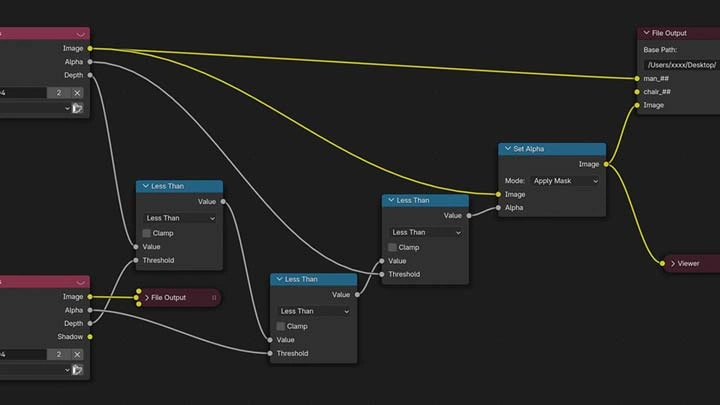
 Improving Efficiency Using the Composite Node
 -
 Creating a Real Manga With Blender
Final Product
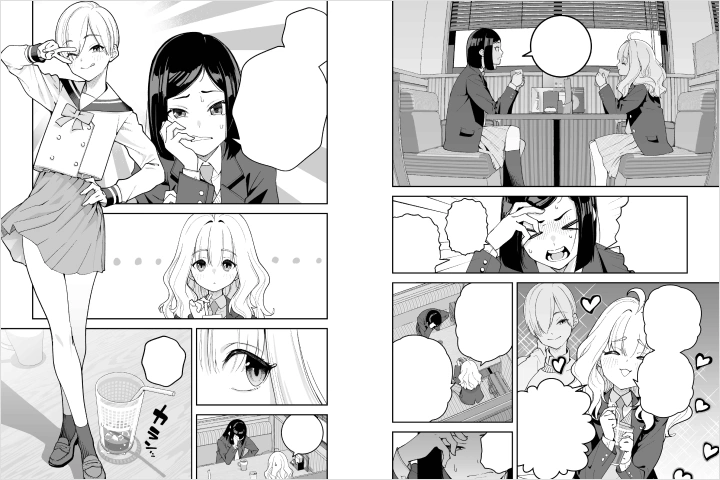
Highlights
Class Highlights
Creating Comic-Friendly 3D Assets
The key to creating comics in 3D lies in clean lines and seamless textures. Learn everything from modeling simple shapes to drawing comic-style lines and shadows, with step-by-step, beginner-friendly explanations. This class isn’t about advanced modeling techniques; you’ll learn how to create lines and shading that work well in comics specifically.

Efficient Blender Techniques for Creating Comics
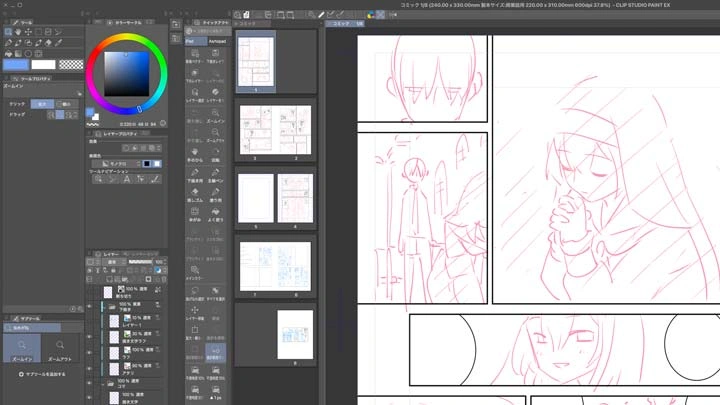
The biggest advantage of using 3D software for manga creation is that it makes the work process quicker and easier. Get tips for improving the efficiency of repetitive tasks, such as setting up cameras, rendering and arranging underdrawings, and other Blender skills, optimized for cartoon creation.

Focused on Knowledge You Can Use Right Away, Rather Than Skills That Take Lots of Practice
This class focuses on knowledge that can be applied immediately instead of on skills that require a lot of practice. Discover how you can minimize the 3D look and make the process of drawing comics more manageable, in addition to other highly practical tips. Learn things that you can use right away, even when you have limited time or approaching deadlines.